cPanel address importer can be used to create multiple email address or forwarders in your account. For example, you have 100 employees in your office and you want each employee to have an email address, then if you have a list of email addresses of employees, then within two clicks, you can create as many email accounts as needed. cPanel address importer supports two type of data import, Excel Spreadsheet (.xls) or Comma separated value sheet (.csv). You can also use this interface import email forwarder list.
Importing Email Addresses
To import email address, follow these steps −
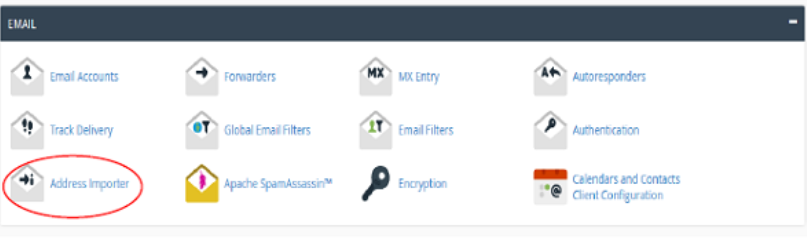
Step 1 − Open cPanel Address Importer by clicking on Address Importer link found in the Email Section.
Step 2 − Select the Email address option in What would you like to import.
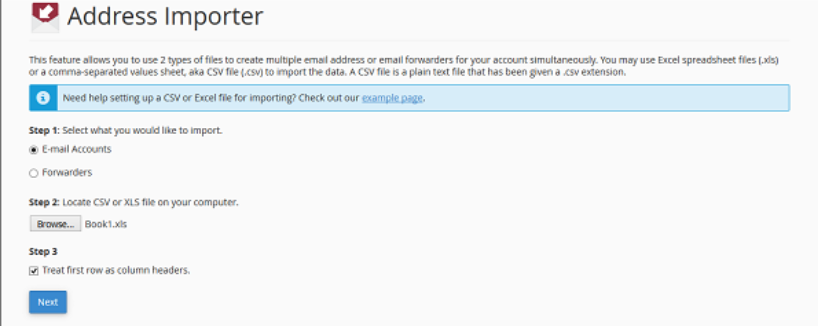
Step 3 − Browse and select your Excel Spreadsheet or CSV file. If you have selected XLS file, then it will only ask to treat the first row as column header, if yes, then select the check box. If you have selected CSV file, then it will ask for the delimiter. In most cases, it is a Comma, choose the one you have, and Click Next.
Note − You can see an example screenshot below. You can create a spreadsheet using Microsoft Excel, and save the spreadsheet using .xls or .csv in Save As menu.
| A | B | C | D | |
|---|---|---|---|---|
| 1 | Email or Name | Password | Quota | |
| 2 | hello@tutorialspoint.com | XEsjhjhh1242 | 300 | |
| 3 | Liptan Biswas | |||
| 4 | test@tutorialspoint.com | |||
| 5 |
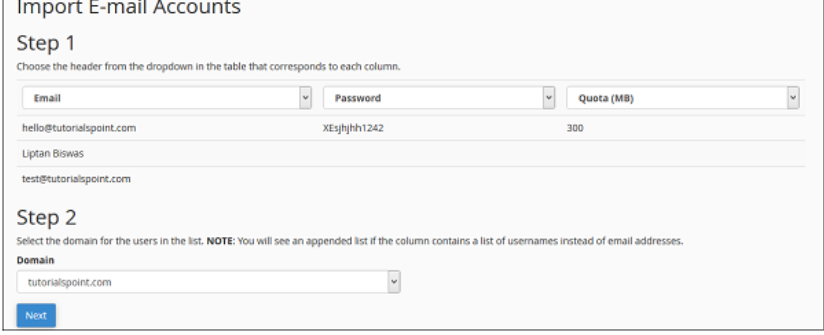
Step 4 − In the next step, it will ask you to c
hoose a header for each column, choose an appropriate one. Select the domain in which you want to create the emails. Click Next.
Step 5 − In the final step, it will show you a review of what is going to be created. Review the Table, take a screenshot or print the page, so that you will have a copy of passwords corresponding to the emails.
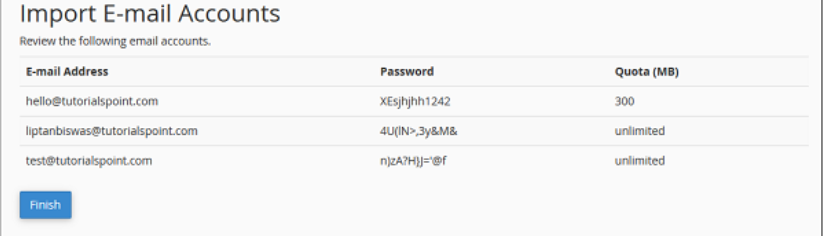
Note − As you can see above for email column, which we did not provide an appropriate email, cPanel has automatically generated an Email for that name. In the password column, which we did not provide a password, cPanel has automatically generated them. While, in the Quota column, where we did not mention the Quota, cPanel has automatically provided unlimited quota.
Step 6 − Click finish to Import the Email addresses.
Importing Email Forwarders
To import Email forwarders, please follow these steps −
Step 1 − Open cPanel Address Importer by clicking Address Importer link found in the Email Section.
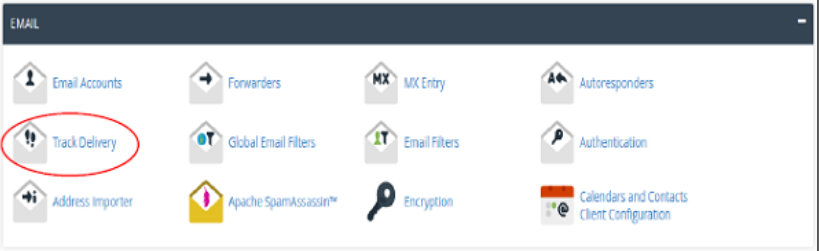
Step 2 − Select Forwarders option in What would you like to import.
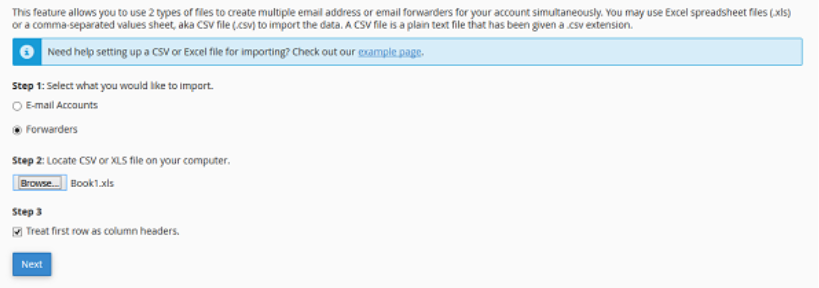
Step 3 − Browse and select your Excel Spreadsheet or CSV file. If you have selected XLS file, then it will only ask to treat the first row as the column header, if yes, then select the check box. If you have selected the CSV file, then it will ask for a delimiter. In most cases, it is Comma, choose the one you have, and then Click Next.
Note − You can see an example screenshot below. You can create a spreadsheet using Microsoft Excel, and save the spreadsheet using .xls or .csv in Save As menu.
| A | B | |
|---|---|---|
| 1 | Forward from | Forward to |
| 2 | hello@tutorialspoint.com | info@tutorialspoint.com |
| 3 | test2@tutorialspoint.com | info@tutorialspoint.com |
| 4 | test@tutorialspoint.com | info@tutorialspoint.com |
| 5 |
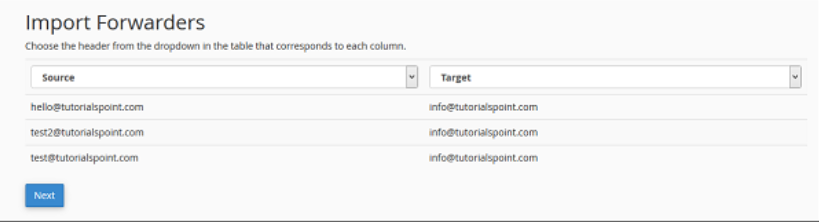
Step 4 − In the next step, it will ask you to choose a header for each column. Select your source and destination column and click Next.
Step 5 − In the final step, it will show you a review of which forwarders are going to be imported. Review the settings.
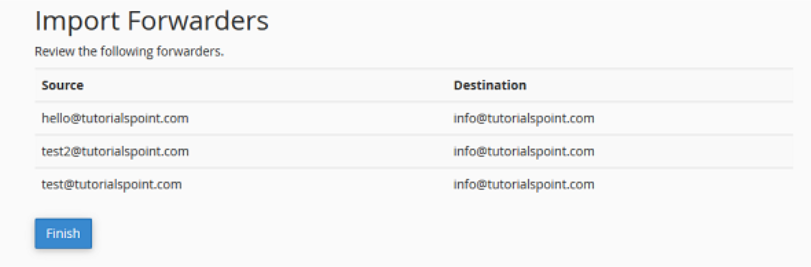
Step 6 − Click finish to Import the Forwarders.
