This Interface of cPanel is used to see delivery reports of emails. This interface can show the errors, while sending your email. You can also see spam scores of your emails. A spam score is provided by Apache Spamassassin. You can also check the emails delivery route to help you identify any problems in the delivery attempt.
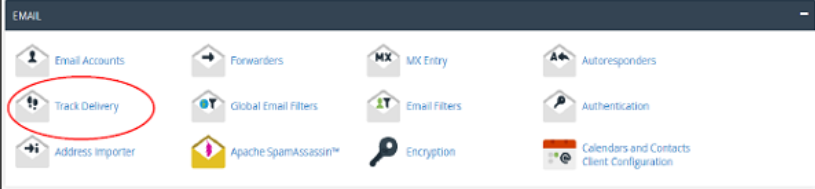
To track an email delivery, open cPanel Track Delivery by clicking on Track Delivery link found in the Email Section of cPanel.
In track Delivery interface, you will see a table of email sending events.
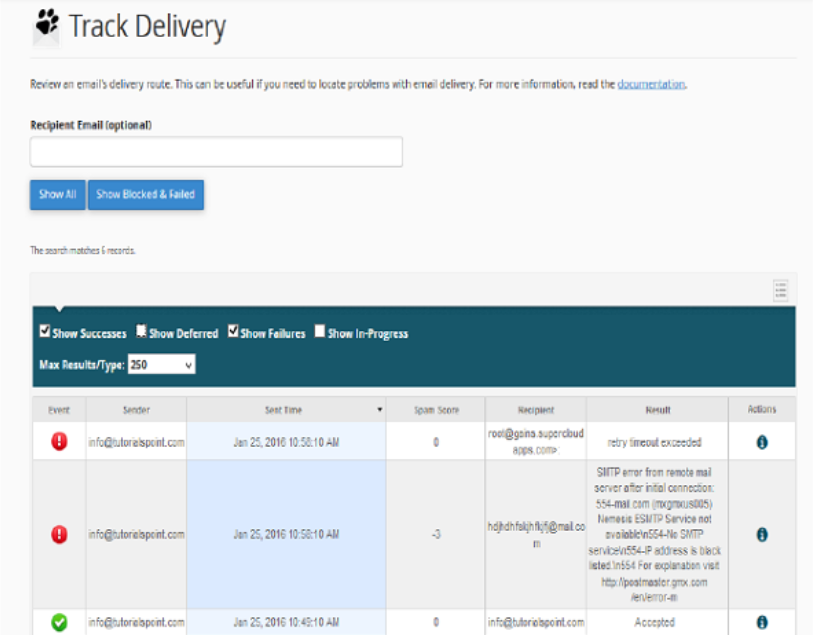
If you wish to filter the table for a single recipient email, you may do so by entering a recipient’s email in Recipient Email (optional), and then click Show All button to show the email related to a specific recipient. To view all emails again, remove the email from Recipient Email and Click Show All, it will again show all the records.
There are four main types of filters, which you can apply to a list.
-
Show Success − This will show all the emails that are successfully delivered to the destination.
-
Show Deferred − This will show you all emails with a warning, which are the system deferred emails.
-
Show Failures − It will show you the emails, which are not delivered to the destination. It will also show any other errors during transmission of emails.
-
Show In–Progress − This will show you all the emails, which are currently transmitting.
You can combine these filters too as and how they are required.
The following table shows the default information about emails −
| Sr.No | Emails & Description |
|---|---|
| 1 |
Event This column shows icon of success, failure or deferred emails. |
| 2 |
Sender It shows the email address of email sender. |
| 3 |
Sent time It shows the date and time on which email was sent. |
| 4 |
Spam Score It shows Apache Spamassassin spam score. |
| 5 |
Recipient It shows the email of recipient. |
| 6 |
Result Important column − it shows the error encountered by the system, while sending the email. This message describes the delivery results |
| 7 |
Action An information Icon, which on clicking shows the details of the report. |
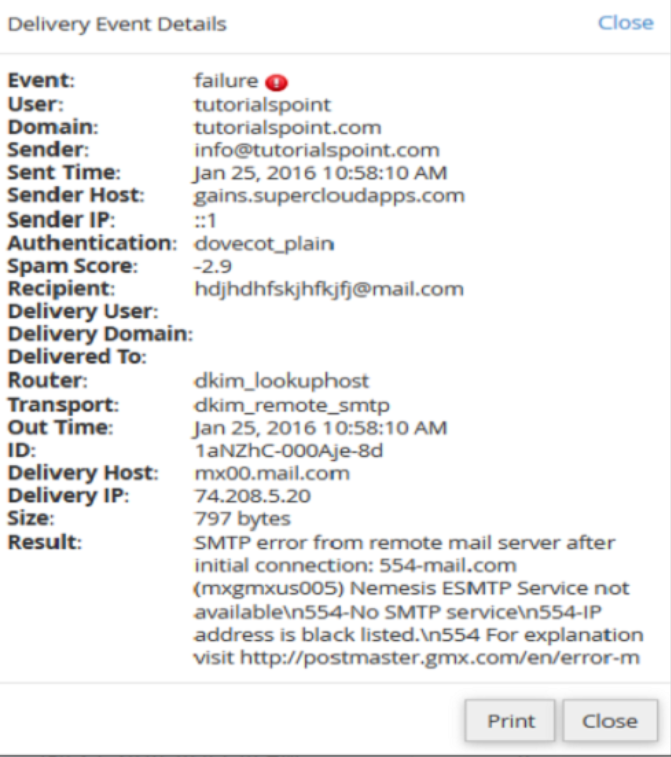
To view more information of an email delivery report, click information icon shown at the action column next to the corresponding report.

And you will see the details of the delivery record as shown below.
The End! should you have any inquiries, we encourage you to reach out to the Vercaa Support Center without hesitation.
