Here, in this tutorial we will discuss the procedure to change OpenCart Admin Password. We have shared articles related to installation of OpenCart.
This tutorial includes the following:-
#1. Change OpenCart Admin Password from Login Page
You can easily change admin password of OpenCart from Login page by following the below mentioned procedure.
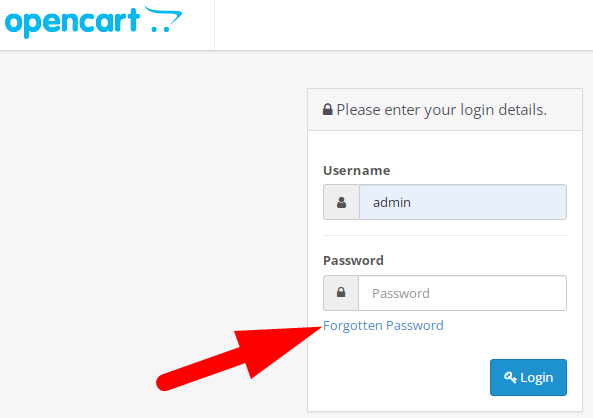
- Go to Login Page of OpenCart.
- Click over Forgotten Password link as directed in below given image
On the next page, enter the registered email which you’ve entered at the time of installation.
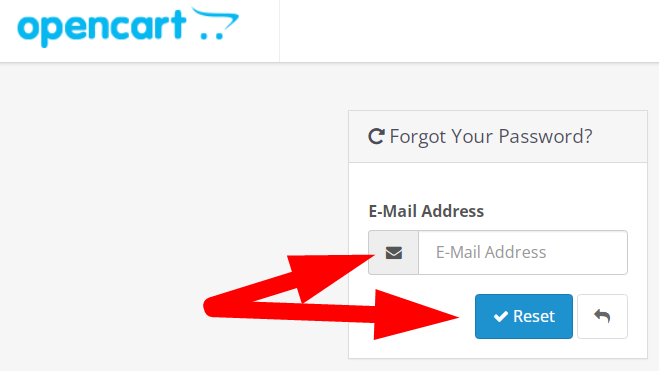
- Click over Reset and proceed.
- You will receive a mail to verify the change password request. Click over the link to reset password.
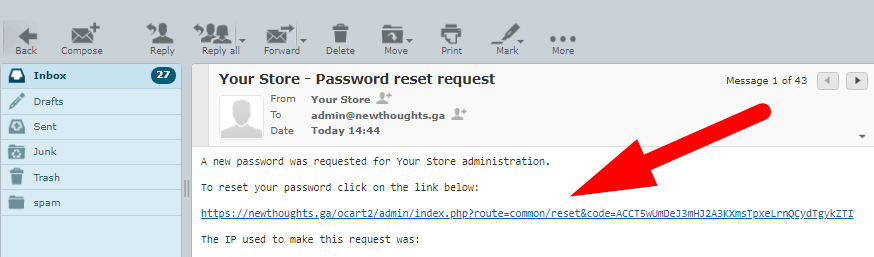
- As you click over link, you will be directed to next page to reset password.
- Enter the Password & Confirm & then Save.
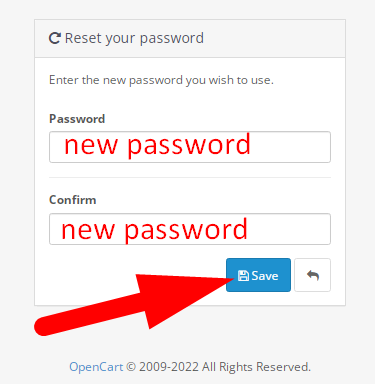
- You will receive a confirmation message.
Now, you can login to OpenCart Admin Dashboard with the new password.
#2. Change OpenCart Admin Password from cPanel
Another way to reset OpenCart Admin Password is from cPanel. Follow the below mentioned steps to do the same.
- Login to cPanel account associated with your OpenCart website.
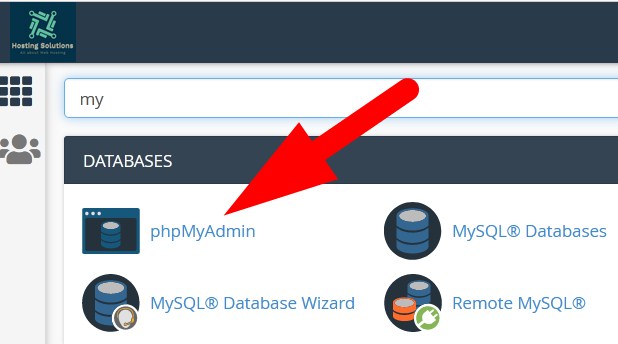
- Select phpMyAdmin from DATABASES section.
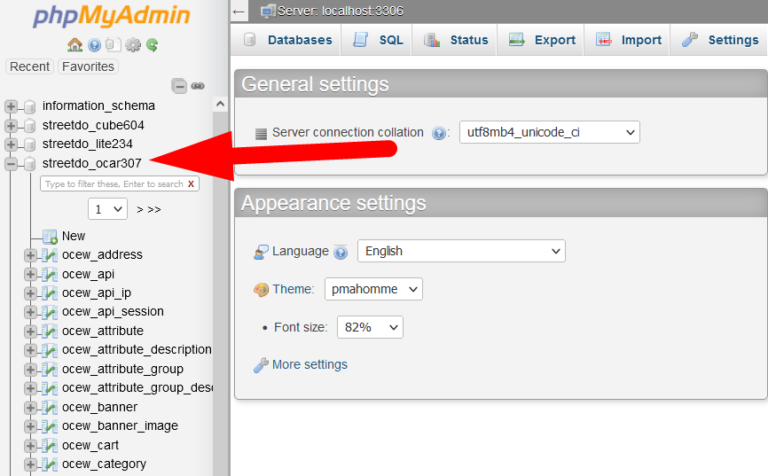
On the next page list of all database will appear on the left panel. Select the one which is related to your OpenCart website.
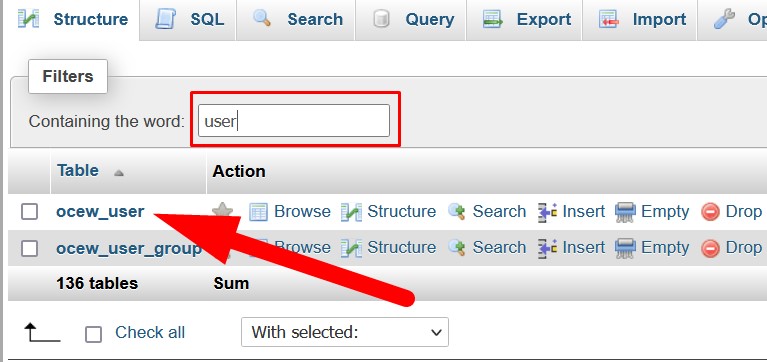
List of all the tables will appear on right panel. In the search bar, type user to get the user table as directed in below given image.
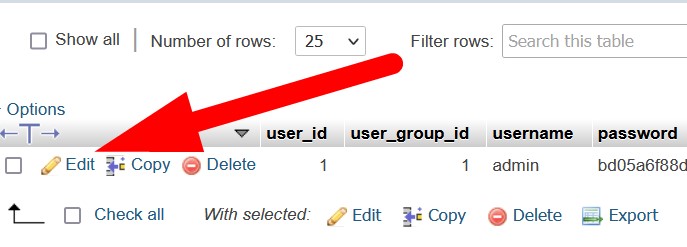
Click over Edit and proceed.
- On the next page, scroll down to password section and enter the new password in the box as directed.
- Then, select MD5 in the Function column from the drop down. Refer to the below given image.
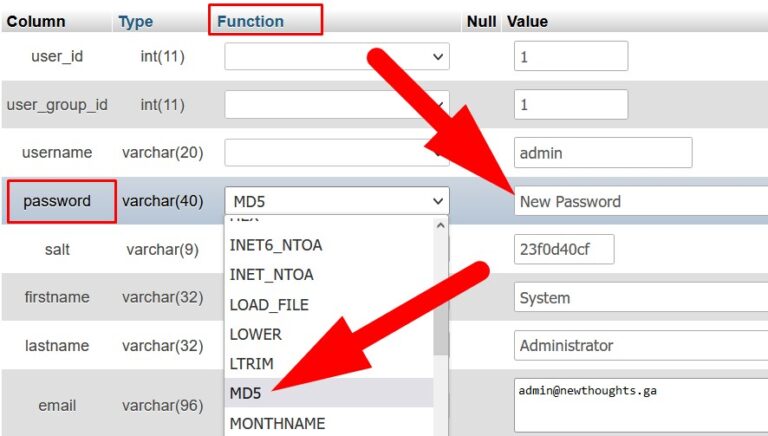
- scroll down & click over GO.
Now, you can login with new password to your OpenCart Admin Area.
The End! should you have any inquiries, we encourage you to reach out to the Vercaa Support Center without hesitation.
