MySQL is the most popular Open Source SQL Database management system. To manage a huge volume of data efficiently, we store the data in tables, a group of many tables can be created in a single database. This interface allows you to create and manage the existing MySQL databases.
If you are creating a PHP based application or any application that uses a database, then you will need to create a database and a database user to access this database. To use WordPress, Drupal, Joomla or any other CMS, you will need to create a MySQL database before installing these CMS.
To create a new MySQL database, you need to open MySQL interface by clicking MySQL Databases link, which can be found in the Databases section of cPanel Home.

Create a New Database
When MySQL Databases interface will open, first thing you will see is Create New Database Section as shown below.
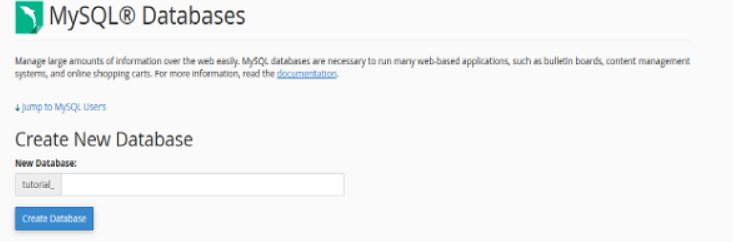
To create a database, simply enter the name of the database you wish to create and then click Create Database Button. You will now get a success message that the database is added.

Note − cPanel will automatically add a prefix to your database name you enter. So that there is no ambiguity in databases as in shared hosting environment. There are many users and there cannot be same name for two databases, thus your database name become Prefix_dbName. When connecting the database with web application you will need to use Full Name of database.
Add a Database User
To use your newly created database in your application, you will need to create a user and grant it all the privileges to modify the data in Database.
To create a Database User, scroll down to the end in Interface of MySQL databases. There you will see MySQL users, under it there will be Add New User, as shown below.
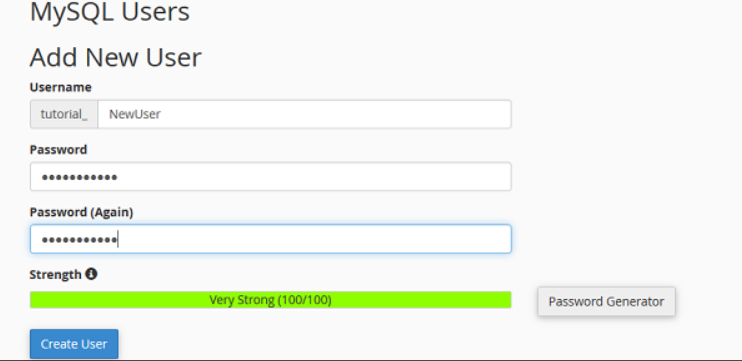
Step 1 − Enter a username according to your choice and choose a strong password. Click Create User to create a new user. You will get a success message “You have successfully created a MySQL user.
Note − Full username of your database user includes prefix and the username you provided.
As we have created a database user, now we will need to add the user to access the database.
Step 2 − Scroll down to find “Add User to Database”.
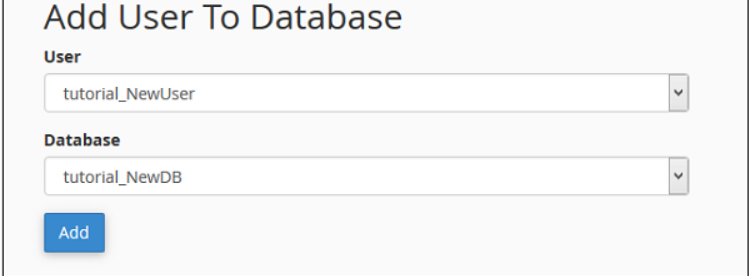
Step 3 − Select the User and database you wish to associate together. Click Add button and you will see the following screen.
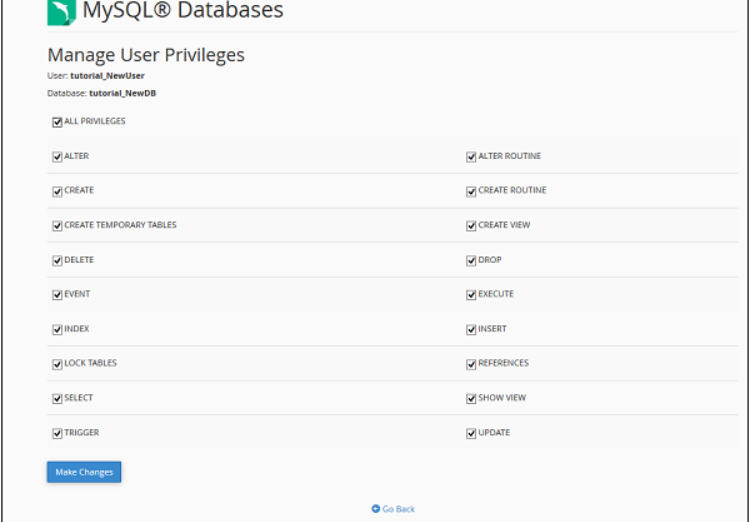
To provide all the privileges to the user, select ALL PRIVILEGES checkbox and all the checkboxes will automatically get selected. Click Make Changes to save the changes.
Modifying a Database
The data stored in MySQL may get corrupted over time. There are many reasons for which this might happen. While using the Database in web application, if we see any database related error, we need to repair the database to repair the corrupt data. But before we repair our database, we will need to find the table on which our data is corrupted by checking the database for errors.
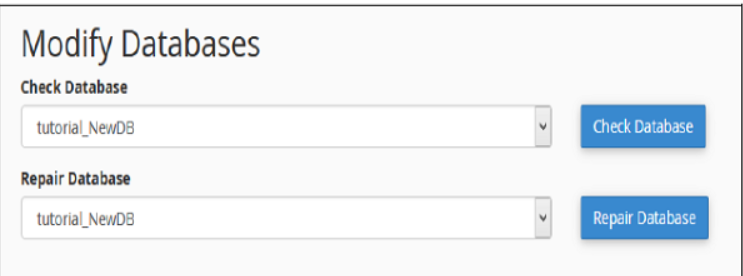
There are two operations we can perform to troubleshoot database related errors. To perform these actions, we need to scroll to Modify Database Options in MySQL Database Interface, screenshot for Modifying Database is shown below.
Check a Database
With this feature of cPanel Database, you can find which table in the Database is corrupted.
To check a database, we need to perform the following steps.
Step 1 − Select the database you want to check, from the dropdown menu of Check Database, as shown above.
Step 2 − Click the Check Database button.
Step 3 − cPanel will now run an automated script to find the corrupt table in the Database. If any corrupt table is found, it will display the name of the Table, otherwise it will display a success message.
Repair a Database
This database tool helps in automatically repairing of corrupt data or table from the database.
To use this tool, we need to perform the following steps −

Step 1 − Select the database having corrupt data from the dropdown menu.
Step 2 − Click Repair Database button.
Step 3 − cPanel will now run an automatic script to repair the corrupt data or table from the database, if it succeeds, it will give you a success message. If it fails to repair the database, it will show you an error with the table name on which the error occurred.
The End! should you have any inquiries, we encourage you to reach out to the Vercaa Support Center without hesitation.
