File Transfer Protocol (FTP) allows you to manage your files with third party applications like FileZilla, CoreFTP, etc. Using a FTP file manager to upload files is a great practice when the number of files or size of the files is large. FTP accounts configures users who can upload, download or modify your files through FTP. Each FTP user has his own username and home directory, only that certain directory the user will have access to.
To create an FTP account, please follow these steps −
Step 1 − Open FTP accounts feature by clicking FTP accounts found under Files Section.

Once FTP accounts feature is opened, you will see the following screen.
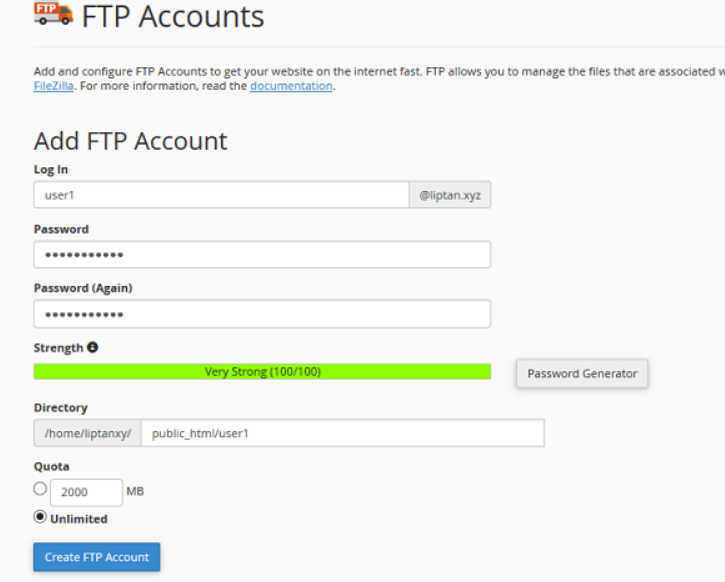
Step 2 − Enter Log in name for your new user, it will be the user’s username, also provide a strong password for this user.
Step 3 − Enter Directory for your new user, you may also leave it with pre-filled directory name according to your user.
Step 4 − Provide FTP storage quota, you may provide unlimited quota or use some value in Megabytes.
Step 5 − Click on Create FTP Account and Your FTP account will be created.
Configure FTP Client
To configure your FTP client, you can download any pre-built configuration file by clicking Configure FTP Account.
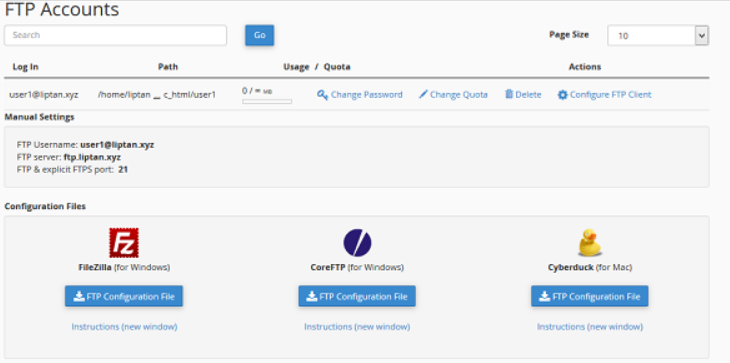
You can download FTP Configuration files for FileZilla or CoreFTP, which are windows software or Cyberduck for Mac.
Special FTP Accounts
These FTP accounts are pre-built with hosting account and cannot be deleted, these are used for administrative purposes.

One of the Special FTP account is your Administrative FTP account, whose username will be same as your accounts username. This FTP account’s home directory is your cPanel accounts root directory. You can access all the files of your account with this FTP account. Its password will be the same as your cPanel account password.
