In this chapter, we will study about Adding Web Links in Joomla. It allows you to insert, remove and edit the links to another webpage in Joomla.
Adding Weblinks
Following are the simple steps to add Weblinks in Joomla −
Step 1 − Click Components → Weblinks → Links in Joomla administrator. After clicking on Links, you will get the following screen.
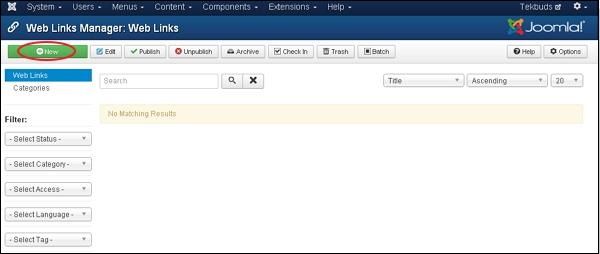
Step 2 − Next, click on New button, you will get the following screen.
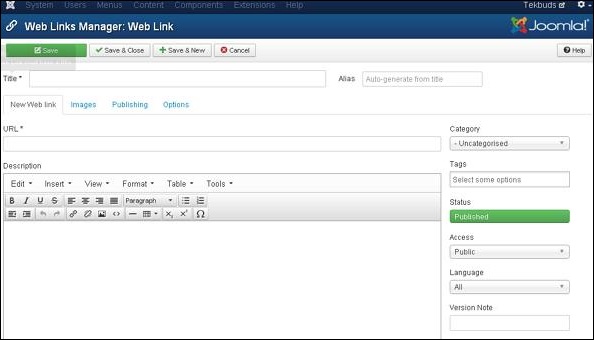
It is the basic editor page for the Web Link Manager. We have already explained about the editor in detail in the chapter Joomla - Adding Content. Here there are different tabs present. By default, the New Web Link tab is displayed.
-
URL − Enter the URL link, after saving, it gets converted to Punycode.
Step 3 − In Images tab, you will get the following screen.
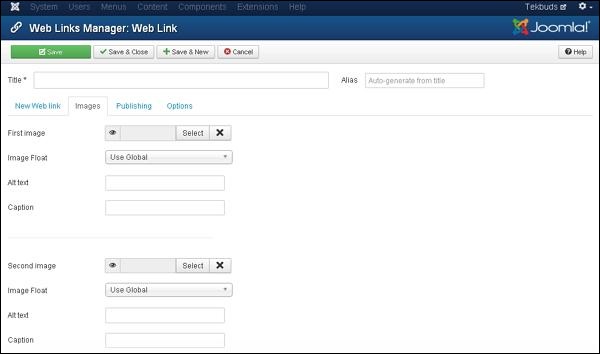
The following fields are present on the Images tab −
-
First image − Click on the Select button to select an image to display with an item on a web page.
-
Image Float − Sets place for the image i.e. Use Global, Right, Left and None respectively.
-
Alt text − Alternative text is present without access to images.
-
Caption − Entered text will display below the image.
-
Second image − Click on the Select button to select the second image to display with an item on a web page.
-
Image Float − Sets place for the image i.e. Use Global, Right, Left and None respectively.
-
Alt text − Alternative text is present without access to images.
-
Caption − Entered text will display the below image.
Step 4 − Click on Publishing tab, you will get the following screen.
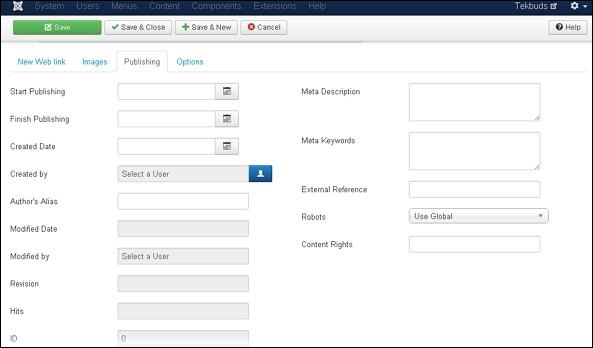
The following details are present on the publishing tab −
-
Start Publishing − It indicates the date on which the Weblinks are to be published on the web page.
-
Finish Publishing − It indicates the date on which the Weblinks are to be stopped from being published on the web page.
-
Created Date − It indicates the created date of the Weblinks.
-
Created by − It indicates the name of the user who has created the Weblinks.
-
Author's Alias − It indicates the name of the Author's Alias who has created the things required in Weblinks.
-
Modified Date − It indicates the last modified date of the Weblinks.
-
Modified by − It indicates the name of the user who has last modified the Weblinks.
-
Revision − It indicates the number of revisions for the Weblinks.
-
Hits − It indicates the number of times the Weblinks have been viewed.
-
ID − It indicates the unique identification number assigned to the Weblinks automatically.
-
Meta Description − It specifies the detail description of the page.
-
Meta Keywords − It specifies the different Meta keywords and it should be represented either by lowercase or uppercase.
-
External Reference − It specifies to use the external reference.
-
Robots − It specifies the instructions to the user to browse the web page.
-
Content Rights − It specifies the rights of the content so that others can use it.
Step 5 − After clicking on the Options tab, you will get the following screen.
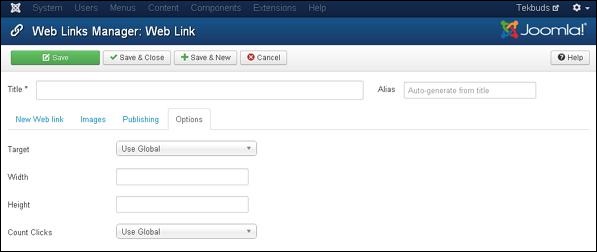
The following details are present on the Options tab −
-
Target − It is used to open a Weblink with either of the commands − Use Global, Open in the parent window, Open in the new window, Open in the popup and Modal.
-
Width − Sets the width of modal window.
-
Height − Sets the height of modal window.
-
Count Clicks − It counts the number of Weblinks that has been opened.
Toolbar
Following are the toolbar options in Adding Weblinks −
-
Save − Saves your Weblink.
-
Save & Close − Saves the Weblink and closes the current screen.
-
Save & New − Saves the Weblink and opens a new create Weblink screen.
-
Cancel − Cancels the created Weblink in Joomla.
The End! should you have any inquiries, we encourage you to reach out to the Vercaa Support Center without hesitation.
