All files and directories in Linux Operating System has access permissions. This feature gives the ability to the user for setting up different access levels for each user and also Operating system gets the ability to deal with different request for accessing the file. This feature makes system more secure to potential security threats. There are three types of access permissions −
-
Read − It is denoted by ‘r’ and number 4, it gives ability to the user for reading the file only.
-
Write − It is denoted by ‘w’ and number 2, it gives ability to the user for writing into the file only.
-
Execute − It is denoted by ‘x’ and number 1, it gives ability to user for executing the file only.
Access permissions can be given in groups too, for example, if we want to give a file to read and write permission only, we can assign ‘rw–‘ to that file or in numerical form, we can assign number 6 – as 4 for read and 2 for write equals to 6.
These access permissions are given to three types of users −
-
User − It is owner of the file.
-
Group − It is the group of users in which Owner lies.
-
World − It is referred to everyone else.
We give access permissions according to file types in cPanel. By default, cPanel File Manager gives 6-4-4 permissions to the users – 6 to the User, 4 to the Group and 4 to the World. Most of the time we do not need to change the file permissions unless needed.
You can change the file permissions in cPanel environment by using the following steps −
Step 1 − Go to File Manager from cPanel Home.
Step 2 − Navigate to the File or Folder you wish to change permissions to and select the file or folder by a single click of the mouse.
Step 3 − Click on Permissions link from the Top menu of File Manager and you will get a Prompt as shown below.
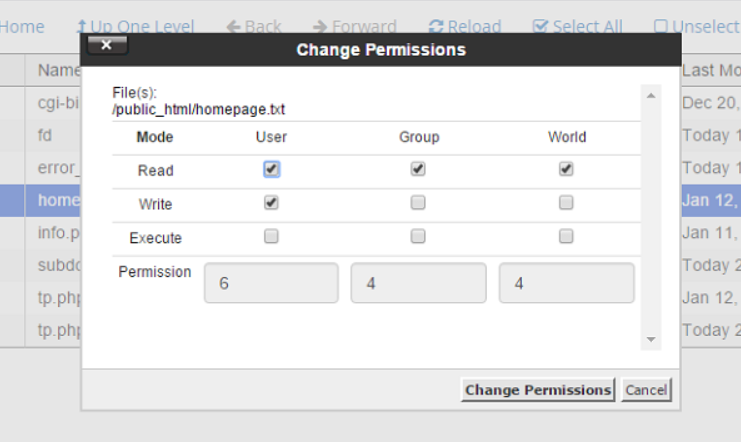
Step 4 − Choose permissions according to your need and Click on Change Permissions to save the new access permissions of the file
The End! should you have any inquiries, we encourage you to reach out to the Vercaa Support Center without hesitation.
