In this chapter, we will study about Joomla Media Settings. Joomla Media Settings help to configure the global media files options such like file format, MIME specifications, upload of files, size of files etc.
Joomla Media Settings
Following are the simple steps used to set the Joomla media options −
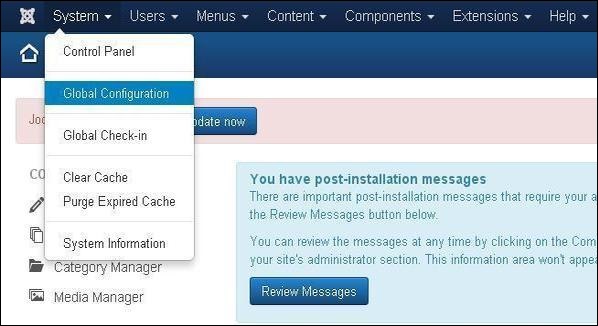
Step 1 − Go to System → Global Configuration as shown in the following screen.
Click on Media Manager in Joomla Global Configuration. You will get to see the following screen and fill the fields with appropriate values.
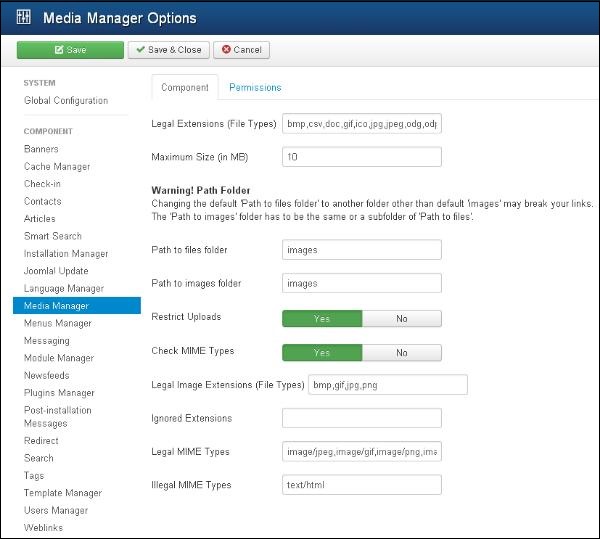
Below we have mentioned the details of the fields present in the Joomla Media Settings page −
-
Legal Extensions (File Types) − Provide an extension for the user file uploads which are separated by the comma (,). For example − jpg, png, json....
-
Maximum Size (in MB) − Maximum size of the file in MB i.e. allowed for an uploading.
-
Path to files folder − Provide the path for the file folder i.e. related to the root of the Joomla installation directory.
-
Path to images folder − Provide the Path for the image folder i.e. related to the root of the Joomla installation directory.
-
Restrict Uploads − It restricts a user to upload the image files, if there is no Manager Permission if File info or MIME Magic isn't installed on the server.
-
Check MIME Types − MIME Magic or File info is used to verify the MIME types.
-
Legal Image Extensions (File Types) − Check for valid image headers of image files.
-
Ignored Extensions (File types) − Ignores the file types which are specified in this field with comma separated.
-
Legal MIME Types − Specifies the legal MIME types separated by comma.
-
Illegal MIME Types − Specifies the illegal MIME types separated by comma.
Step 2 − Click on Permission and select the required options from the drop-down menu.
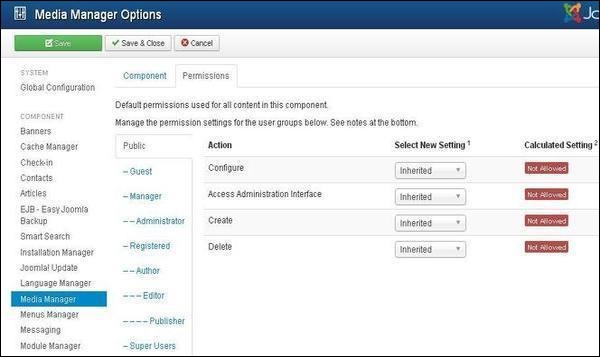
The following steps describe how to change the permissions for the Media Manager component −
Step (2.1) − You can select the Title that is listed in the Group, located on the right.
Step (2.2) − The possible desired Actions are −
-
Configure − Users can configure this component.
-
Access Administration Interface − Users are able to access the administration interface.
-
Create − Users can create the content in this component.
-
Delete − Users can delete any content that is defined in this component.
Step (2.3) − Select the Permission for an Action that you want to change −
-
Inherited − The Global Configuration, Component Configuration, Article Manager Options, or Category permissions are used to inherit for users in this Group.
-
Allowed − This shows the allowed Users for this Group.
-
Denied − This shows the denied Users for this Group.
Toolbar
Following are the toolbar options in the media.
-
Save − Saves your media setting.
-
Save & Close − Saves the media setting and closes the current screen.
-
Cancel − Cancels the media setting in Joomla.
The End! should you have any inquiries, we encourage you to reach out to the Vercaa Support Center without hesitation.
