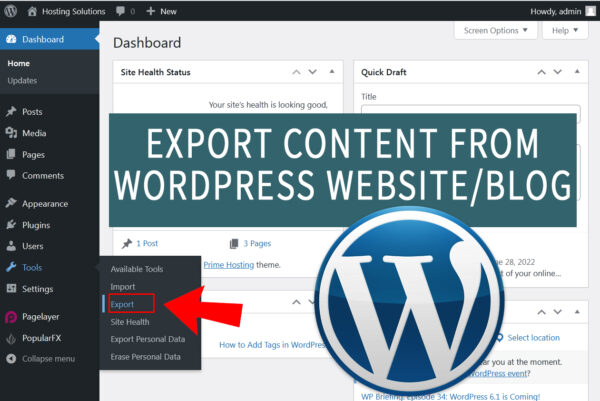
in this tutorial we will learn the procedure to export content from WordPress. You can also check the tutorial to transfer WordPress content from one blog to another
 .
.
Let us learn the detailed procedure for how to access Export tool and then use it to export content from WordPress.
#1. Access Export Tool
You can easily access the tool from WordPress dashboard.
- Login to WordPress dashboard from which you want to export the content.
- From the left panel list, get inside Tools section.
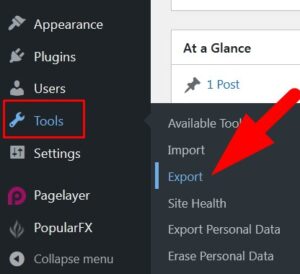
- Select Export from the list of options appears.
You will be directed to the next page where you will get multiple options related to export tool.
#2. Export Content From WordPress
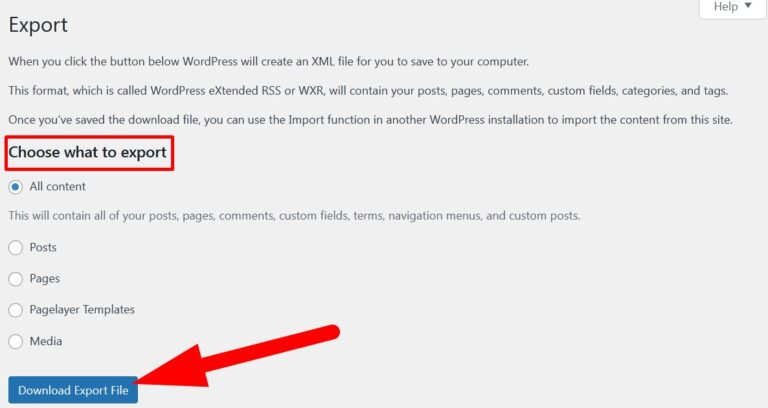
As you select the Export option from WordPress dashboard you will be directed to the page having description related to export feature and options to select what to export.
WordPress allows user to export all contents, posts, pages, media and templates if any. let us learn about them one by one.
a. All Contents
This option allows user to export all the contents of your WordPress website. This option is selected by default. So, if you want to export all your WordPress website data leave the selection as it is and click over Download Export File.
b. Posts
This option helps users to get all the data related to posts including Categories, authors. You can filter the post by selecting the date and status (published, scheduled, pending, draft) from the drop down button.
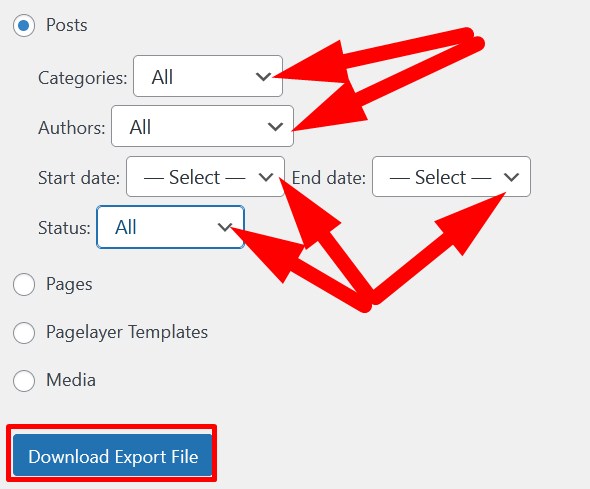
Click over Download Export File to export all the contents related to WordPress website posts.
c. Pages
This option allows user to e get data related to WordPress website pages which can be filter by selecting authors, end and start date and status (published, scheduled, pending, draft) from the drop down button.
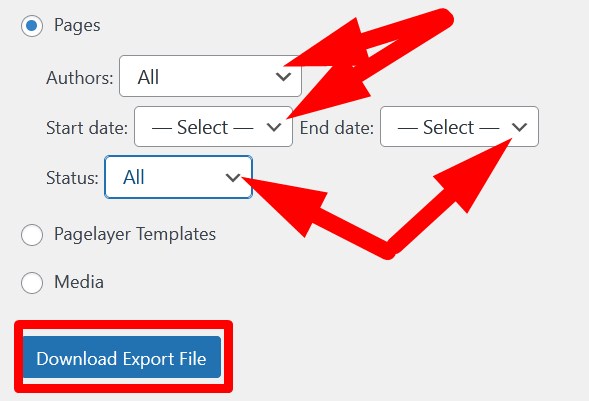
Click over Download Export File to export all the contents related to WordPress website pages.
d. Media
WordPress also provides feature to export all the media of the website from media option. You can filter the media by selecting start and end date.
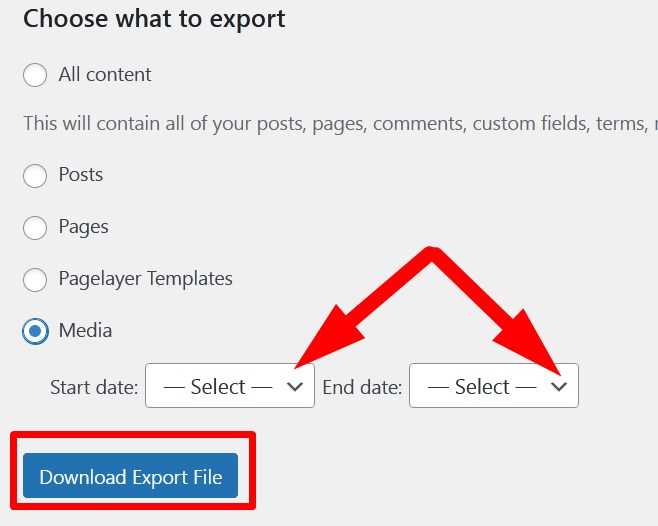
Click over Download Export File to export all the media of WordPress website.
Now, with the above given procedure you can export the contents of a WordPress website or blog easily. Hope the tutorial better help you to understand the procedure to export content from WordPress.
The End! should you have any inquiries, we encourage you to reach out to the Vercaa Support Center without hesitation.
