In this chapter, we will study the step-by-step procedure of how to add new menu items in Joomla. Menu items can be created in the main menu (menu1), which we have already created in chapter Joomla - Create Menus.
Adding Menu Items
Following are the simple steps to add a menu item in Joomla.
Step 1 − Click on Menus → Menu1 → Add New Menu Item as shown below.
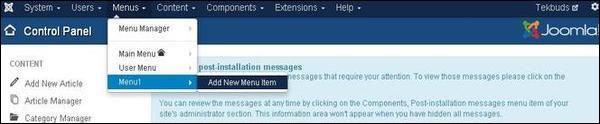
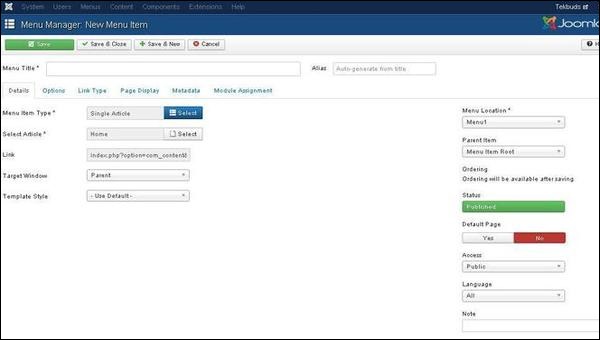
Step 2 − After clicking on Add New Menu Item, the Menu Manager − New Menu Item page is displayed as shown below.
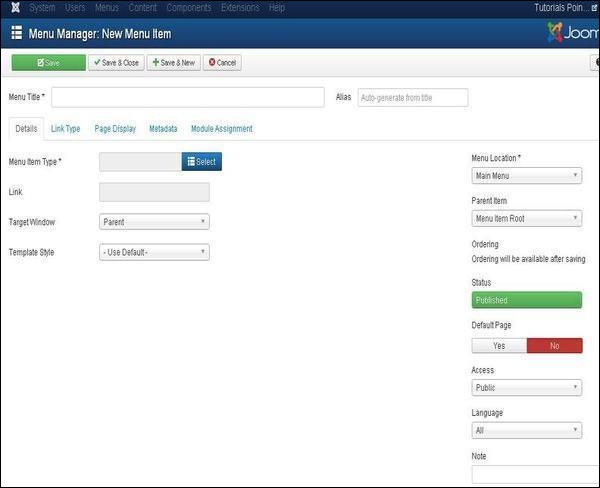
You can view various tabs present in this page. The Details tab gets active by default.
There are two main sections under New Menu Item −
-
Menu Title − It displays the title of the menu item.
-
Alias − It is used as SEF URL. Joomla will automatically fill the value from the title. It will produce UTF-8 aliases, however, it does not allow any spaces and underscores.
-
Menu Item Type − In Menu item type, it specifies the type of menu item such as articles, tags, web links, system links, contacts etc. Here you can select menu item type by clicking on the Select button. By clicking on this button, a screen appears as shown below.
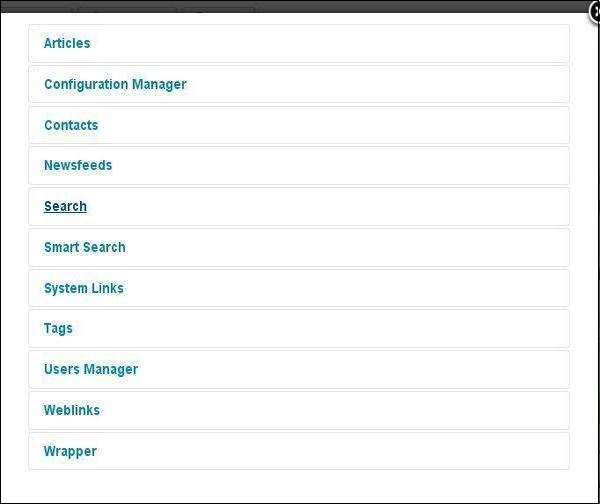
Click on Articles menu type, you get following screen. Now select Single Article as shown below.
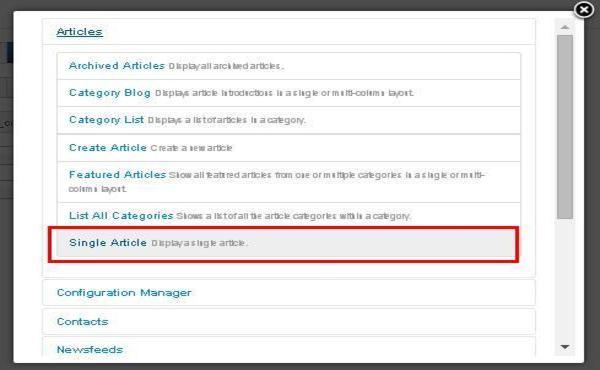
After selecting Single Article you will get the following screen.
-
Select Article − Selects the article from the list.
-
Link − Specifies link reference for the menu item.
-
Template Style − You can select a template style for your website by clicking at the dropdown menu which gives you Beez3 - Default and Protostar - Default styles or provides default template for your website.
-
Target Window − It targets the window for menu items such as Parent, New Window With Navigation and New Without Navigation.
-
Menu Location − It specifies which menu link will appear either Main Menu or User Menu.
-
Parent Item − It selects parent item by selecting either Menu Item Root or Home.
-
Status − It displays the status of the article such as Published, Unpublished and Trashed.
-
Default Page − It provides Yes or No options to set the menu item as default or home page of the site.
-
Access − It allows access only to selected users from the dropdown list such as Guest, Public, Super Users, Registered and Special option to view the items.
-
Language − It specifies the language of the site. It provides either ALL or English (UK) options.
-
Note − It is used to enter the text information.
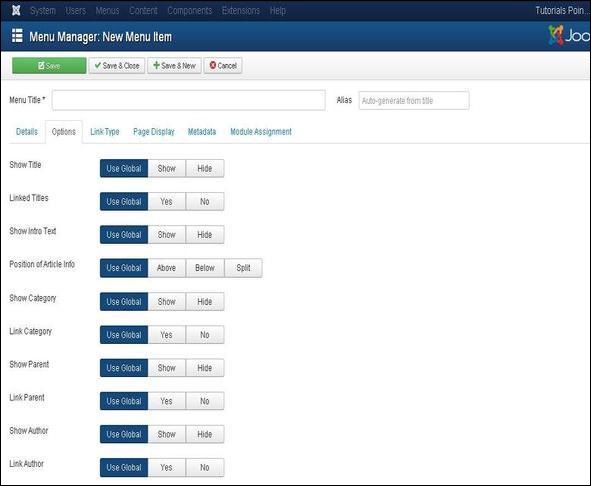
After selecting Menu Item Type it will generate an Options tab automatically.
Step 3 − When we click on Options tab we will get the following screen.
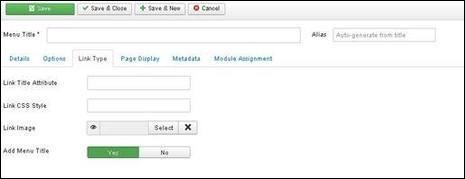
Step 4 − Click on Link Type tab we will get the following screen.
-
Link Title Attribute − It specifies description for the title attribute of the given hyperlink.
-
Link CSS Style − It applies custom CSS style to the hyperlink.
-
Link Image − It uses an image to be used with hyperlink.
-
Add Menu Title − It provides Yes or No options and adds the menu title next to the image. The default is Yes.
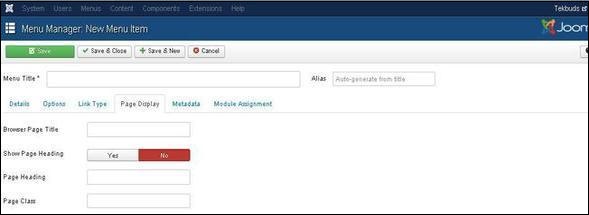
Step 5 − Click on Page Display tab we will get the following screen.
-
Browser Page Title − It specifies the description for the browser page title.
-
Show Page Heading − It provides Yes or No option to show the page heading.
-
Page Heading − It specifies the text for the page heading.
-
Page Class − It defines the optional CSS class to style the elements in the page.
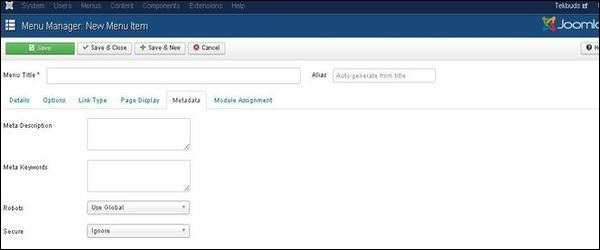
Step 6 − Click on Metadata tab we get the screen given below.
-
Meta Description − It is used as optional paragraph which includes description of the page and displays in the results of the search engines.
-
Meta Keywords − These are the optional keywords to be used in the html page.
-
Robots − It specifies robotic instructions such as Use Global, Index, Follow, No Index, No follow
-
Secure − It defines whether link must use SSL or Secure Site URL. It provides three options such as Off, On and Ignore.
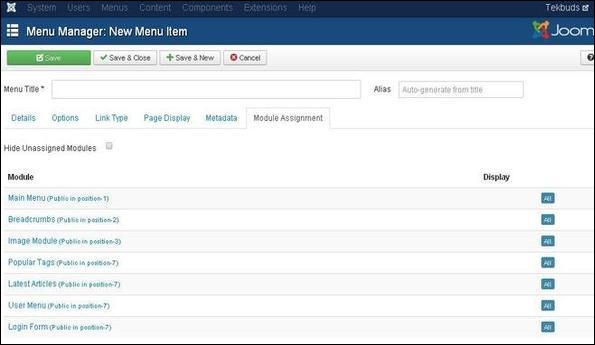
Step 7 − The Module Assignment controls the module display on the page by assigning modules in menu items.
Toolbar
Below, we have mentioned details of the functions of the toolbar buttons present while adding menu items.
-
Save − Saves your created menu items.
-
Save & Close − Saves the menu item and closes the current screen.
-
Save & New − Menu item will get saved and it will open a new adding menu items screen.
-
Cancel − Cancels the current action.
The End! should you have any inquiries, we encourage you to reach out to the Vercaa Support Center without hesitation.
