In this chapter, we will learn about Triggers and Actions in Drupal. First let's look into Triggers.
It can be defined as changes happening within your site. The actions can be carried out either after creating a new content or any page.
Triggers
Following are the steps that will help you use triggers in Drupal.
Step 1 − First click Modules from the menu bar.
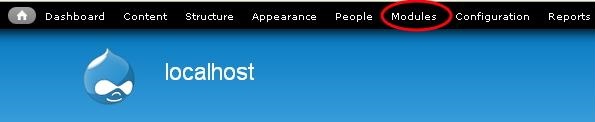
Step 2 − When you click Modules, you get the following page.
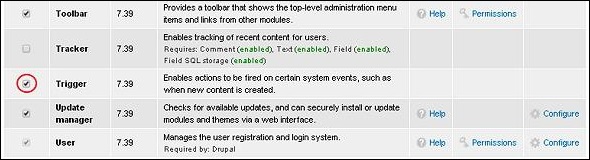
Here enable Trigger module. Then click Save Configuration at the bottom of the page.
Step 3 − Go back to the Trigger module and click Configure on the right side of the page as shown in the following image.

Step 4 − When you click Configure, you get the following page.
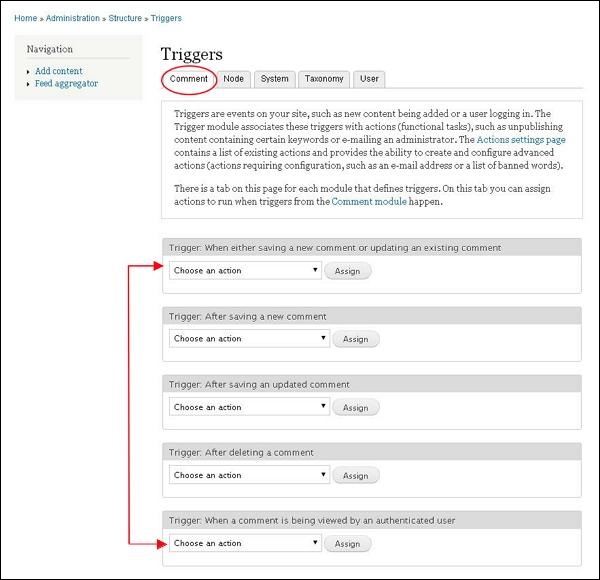
We have different tabs on the page that specify each trigger.
Comment Module − You can assign action to only those triggers relating to comment module.
Node Module − You can assign action to those triggers relating to Node module.
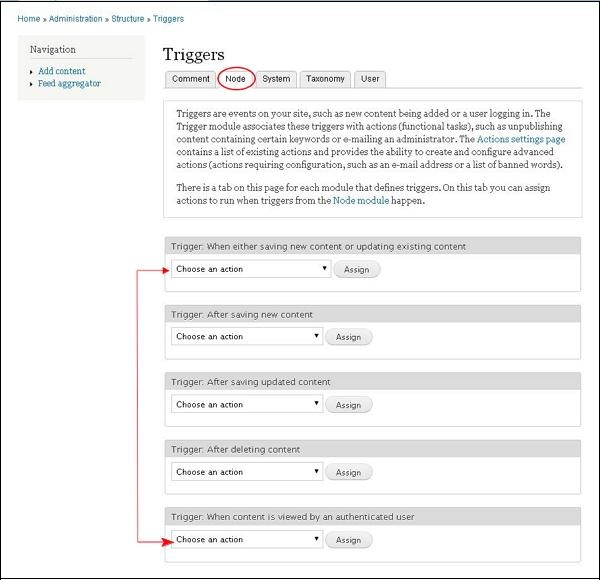
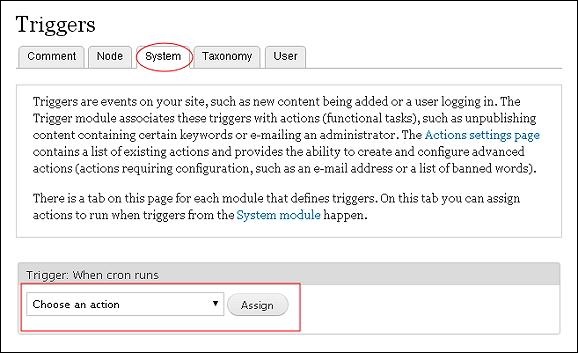
System Module − You can assign action to only those triggers relating to System module.
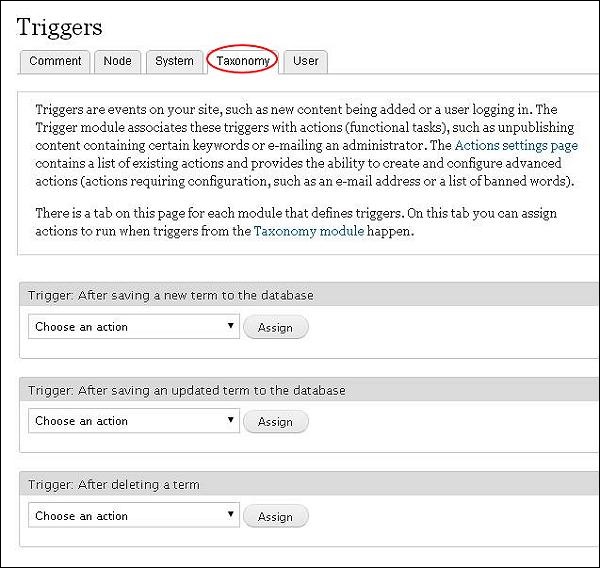
Taxonomy Module − You can trigger actions to the Taxonomy module.
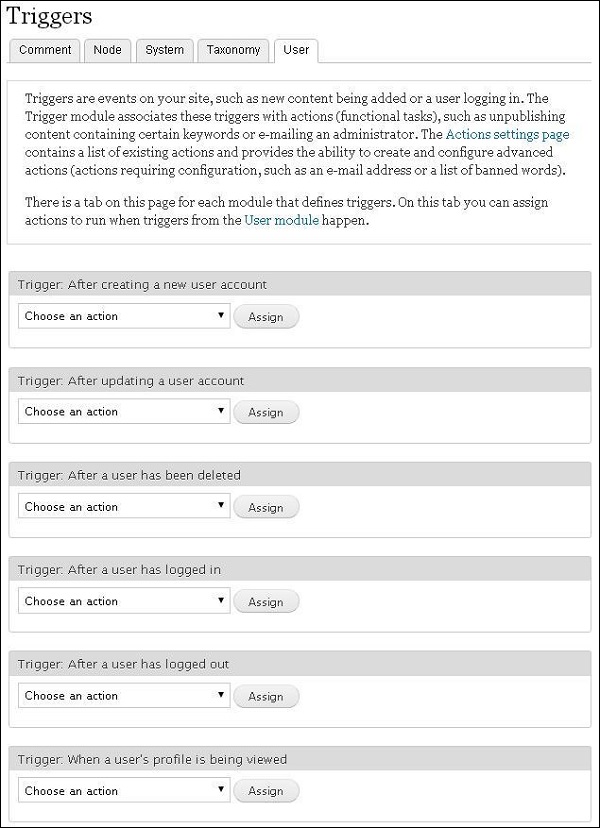
User Module − At last we have the user module, here actions must be assigned in User module.
Actions
Tasks carried on a particular system object are called actions.
Step 1 − Click Configuration from the menu bar.
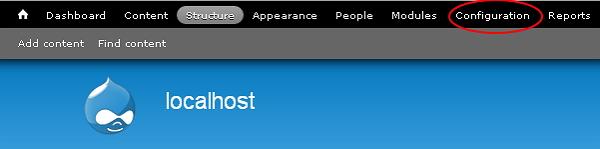
Step 2 − Click on Actions from the system section.
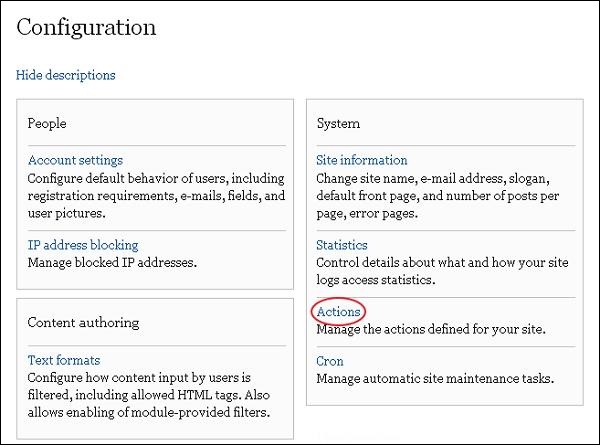
Step 3 − When you click Actions, you get the following page.
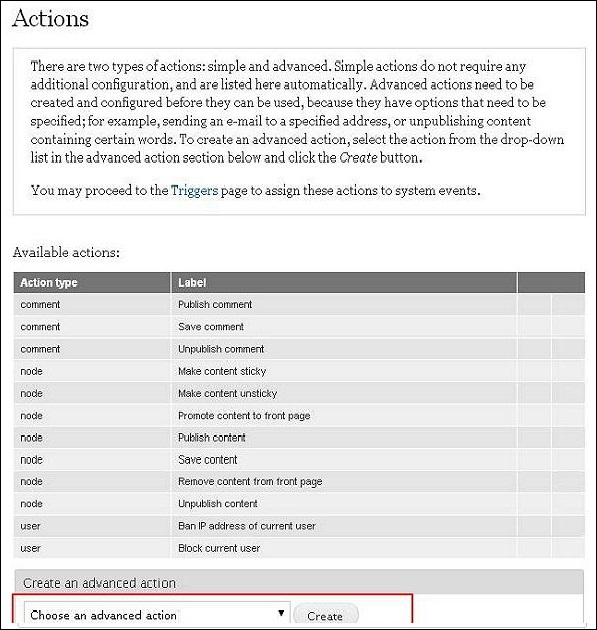
Step 4 − Select any one action from the dropdown and click Create.
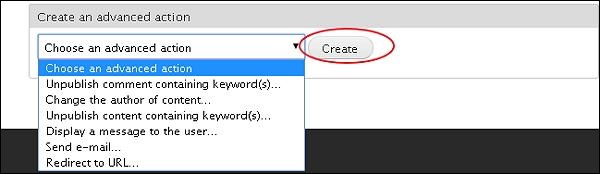
Step 5 − When you choose an option and click Create, The following page appears.
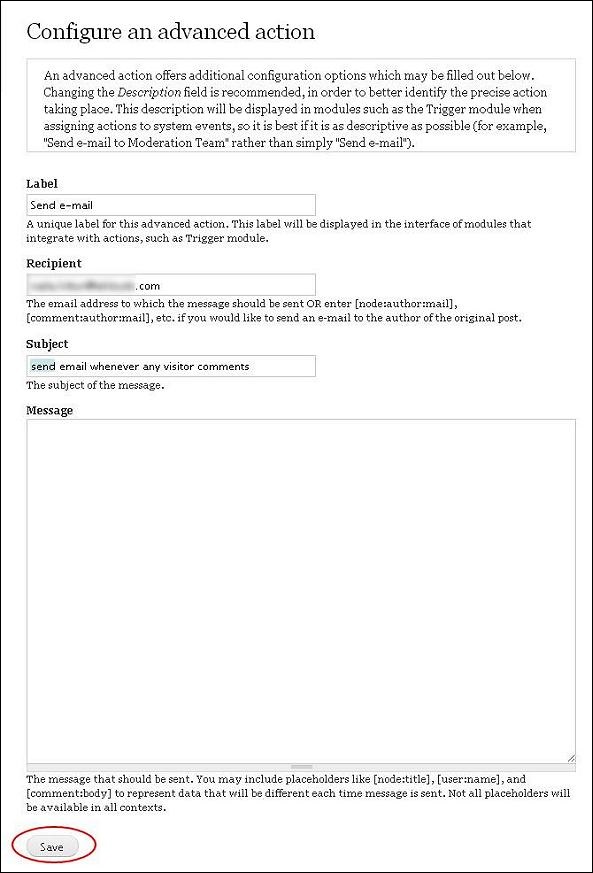
Following are the option fields present on the page −
-
Label − Give a name to your action
-
Recipient − Enter your email address
-
Subject − Enter a subject you want to add to the action
-
Message − Enter the message you want to send to the visitor when clicked on any action.
After filling all the details, click Save.
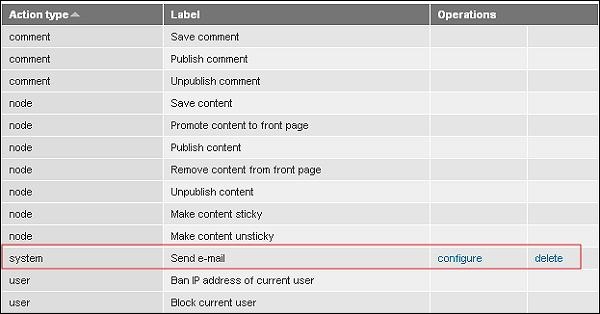
Step(6) − You can see that your action is added to the list.
The End! should you have any inquiries, we encourage you to reach out to the Vercaa Support Center without hesitation.
