WordPress provides user with multiple features with which they not only manages their website but also they can manage the WordPress Admin Dashboard conveniently. That means with various Plugins you can manage the Analytics, Themes, Posts etc from A WordPress dashboard.
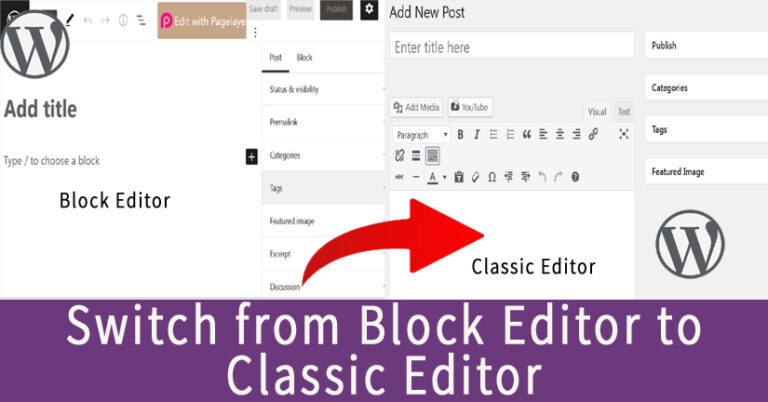
Today, in this tutorial, we will learn the procedure to switch from Block Editor to Classic Editor in WordPress to write the posts for your WordPress website.
Block Editor is also known as the Gutenberg which is the latest version available with all versions of WordPress later by 5.0 version. It has its own features but still many users prefer to use the old editor or Classic Editor of WordPress.
Let us learn about the whole procedure in detail.
- Login to your WordPress account in which you are using Block Editor.
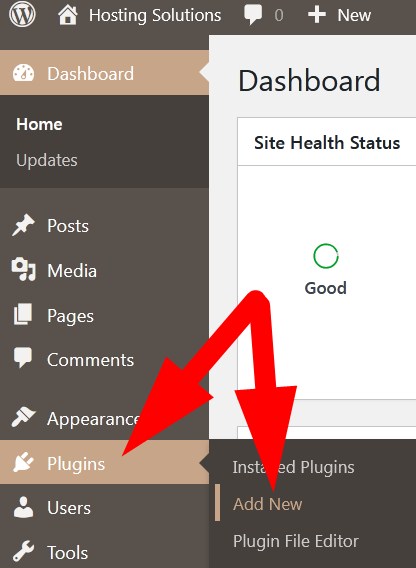
- Get inside Plugins section from the left panel list and then click over Add New.
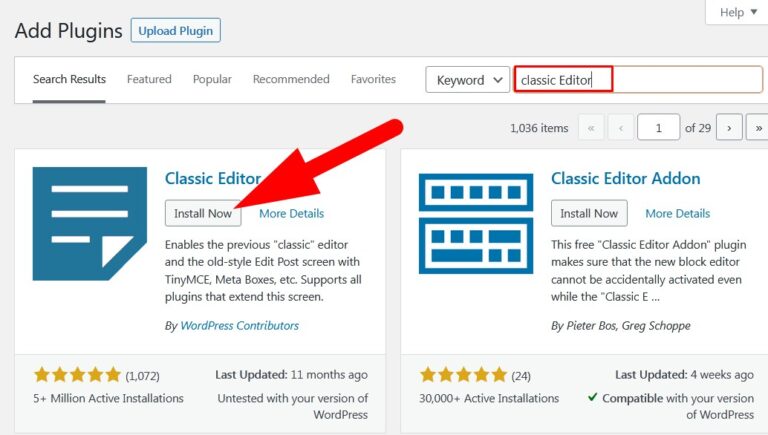
- On the next page, you will get top-listed Plugins. In the search bar, search for Classic Editor plugin.
- List of plugins related to your search will appear. Select the one as directed in the below image and then click over Install Now.
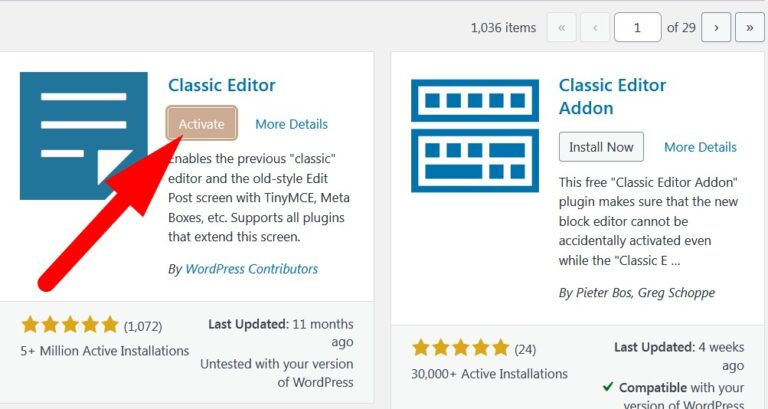
- As you install the plugin, click over Activate.
Now, you can edit or add any posts by using the Classic Editor in your WordPress website.
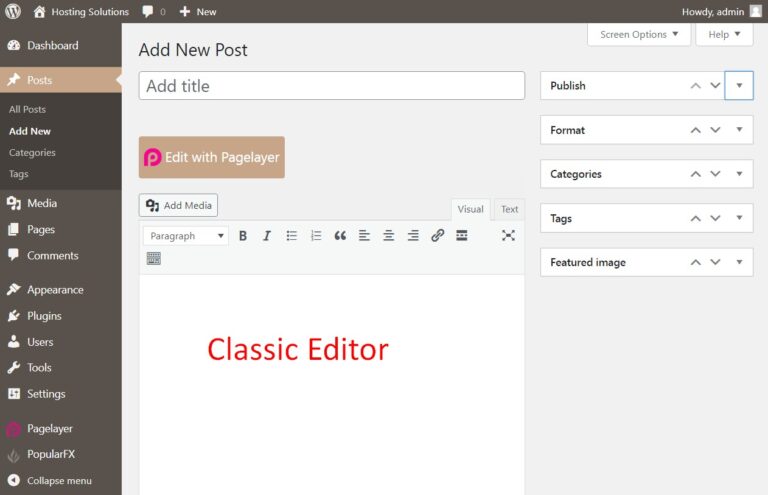
Hope the tutorial better explain the procedure to switch from block editor to classic Editor in WordPress. If the tutorial works for you then do share your suggestions and article as well.
The End! should you have any inquiries, we encourage you to reach out to the Vercaa Support Center without hesitation.
