WordPress has various features that allows user to efficiently manage and improve the presentation of its websites by using Plugins, Themes etc. Today, in this tutorial we will discuss about a Plugin, Elementor Website Builder that you can use to improve your WordPress website. Let us know in-detail about:
#1. What is Elementor?
Elementor is a website builder that helps you to build pages for your WordPress website. It is a plugin that helps you to create beautiful pages by just using drag and drop technique. With this plugin, you can customize your website pages using visual editors and create dynamic and responsive WordPress website.
#2. How to Install Elementor?
You can easily install Elementor for your WordPress website by following the below mentioned steps.
- Login to your WordPress dashboard.
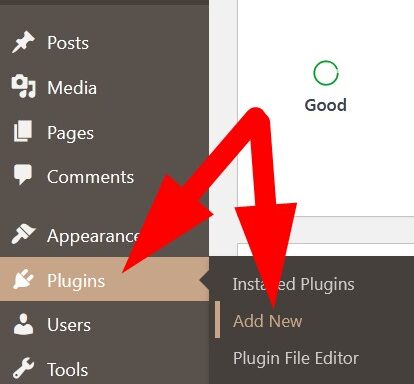
- From the left panel list, click over Plugins and then Add New.
- You will be directed to the new page. Type elementor in the search bar.
- List of Plugins related to it will appear. Click over Elementor Website Builder.
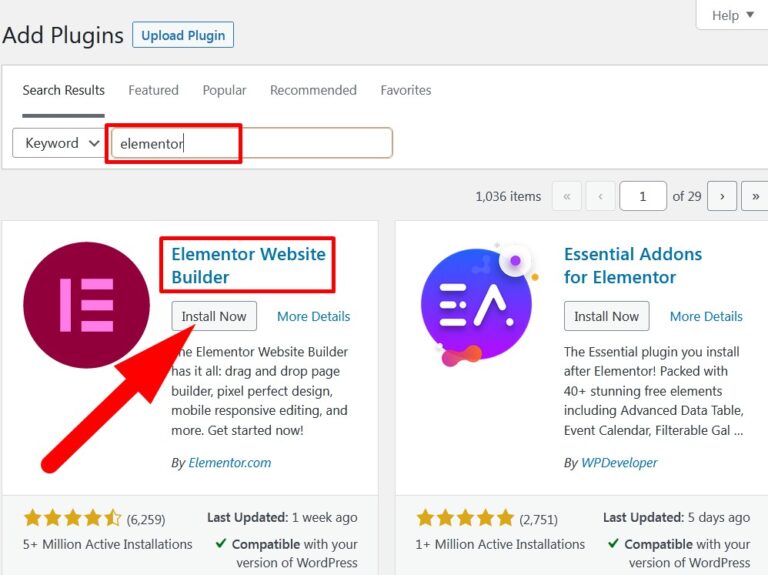
- Click over Install Now to install the plugin and then Activate.
You have successfully installed Elementor for your WordPress website.
#3. How to set-up Elementor for you website?
Like other WordPress plugins, you can easily set-up Elementor for your WordPress website. After successful installation of plugin, you will be directed to a page to set up basic page of your website. (You can skip or continue with the process).
Let us go continue to set up Elementor.
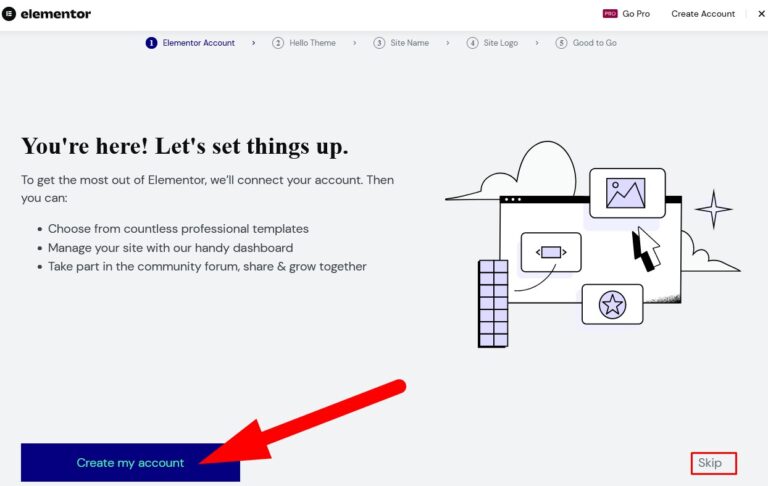
- First you have to create an account in Elementor. You may skip this step.
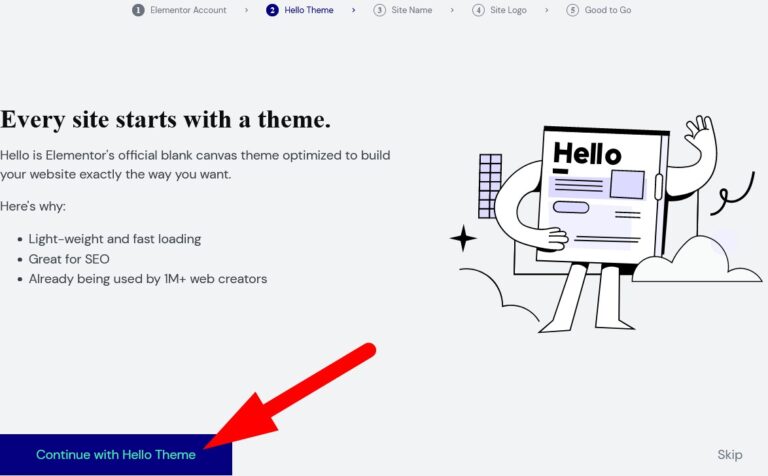
- An option to use default theme will appear. Click over Continue with Hello Theme. You can change the theme later on if required.
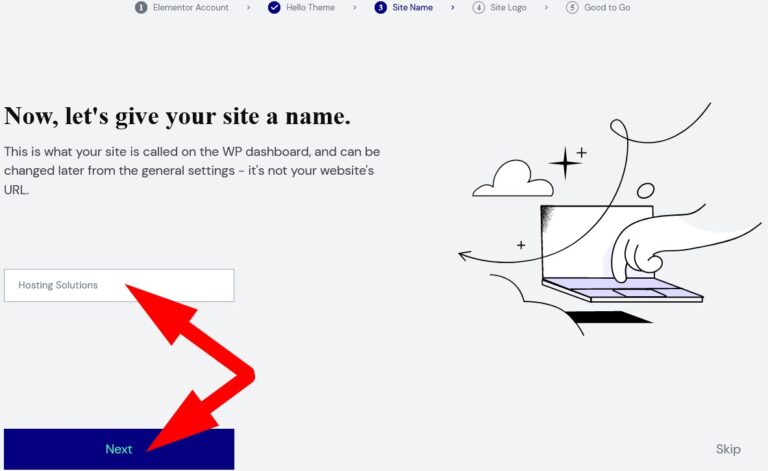
- Now, add a name to your Site. Enter the name in box as directed and then click over Next.
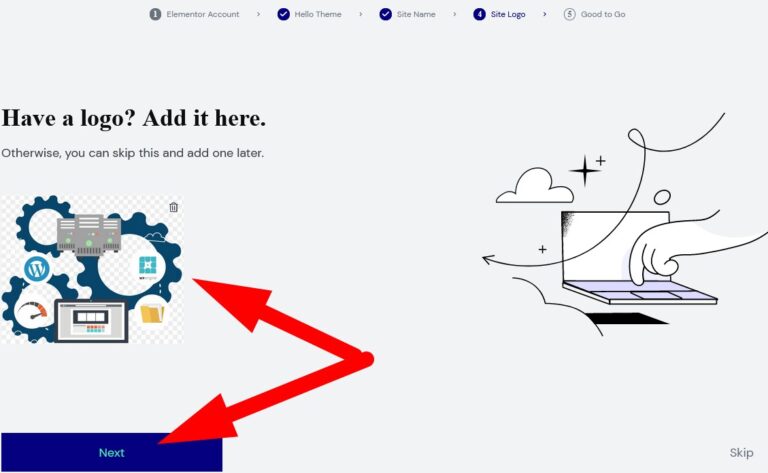
- Select a logo for your website in the next page. You can make changes later on if required.
- On the next page, it will ask you to select Template or edit a blank Canvas. You may select one as per your choice and finish set up.
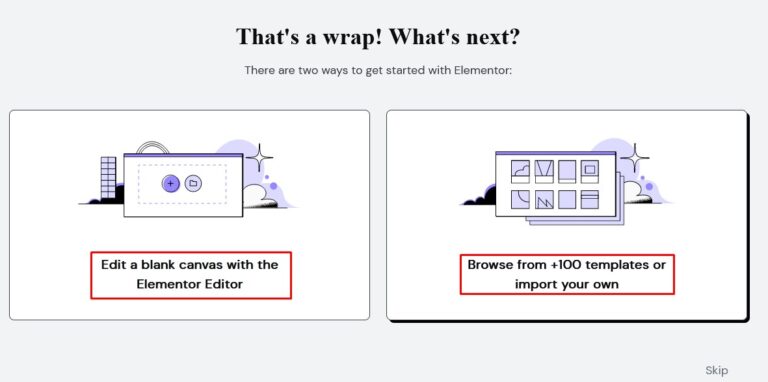
If you select, Browse from Templates then you will be directed to the page to select Template and then continue editing. But if you select, Edit a blank canvas then you will be directed to custom page having your website name, logo etc.
The End! should you have any inquiries, we encourage you to reach out to the Vercaa Support Center without hesitation.
