How to Protect the wp-content Folder of Your WordPress Website? [STEP BY STEP]☑️
Today in this tutorial we will make you learn how to protect the wp-content folder of your WordPress website in just few simple steps. So let’s get started!!
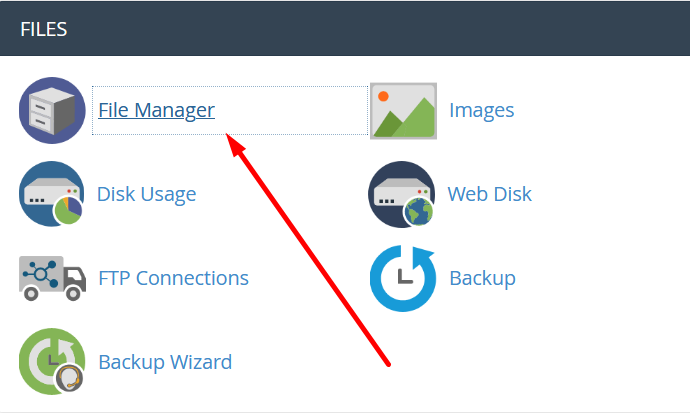
Step::1 Login to your cPanel account and open the File Manager under Files.
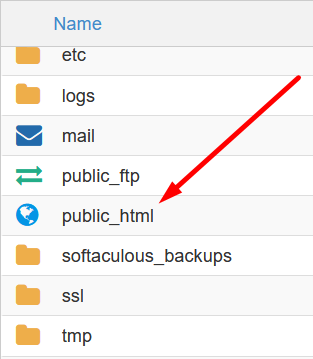
Step::2 Open the root directory/public_html
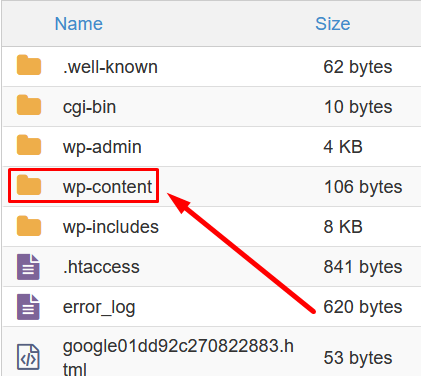
Search for wp-content, click to open
Step::3 The folder consists of many directories from which, you need to open the uploads folder.
Also See: Enable Two Factor in cPanel
The UPLOADS directory has all the media files of your WordPress website. You can see the arrangement after opening it.
Step::4 Here you have to create a new file, click on +File showing at the top-left corner of the main navigation menu of cPanel.
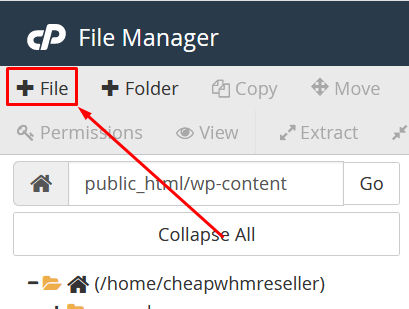
Step::5 A popup appears, which require you add the file name. Make sure you don’t forget the dot as a prefix of the .htaccess file.
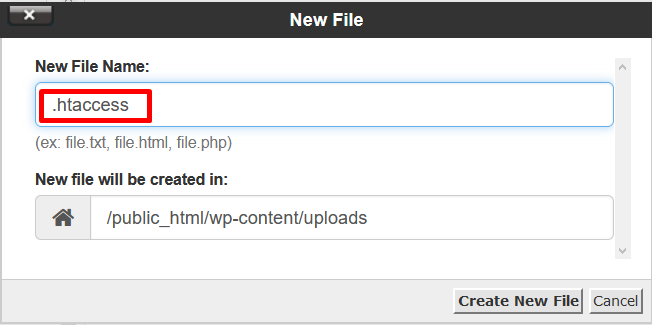
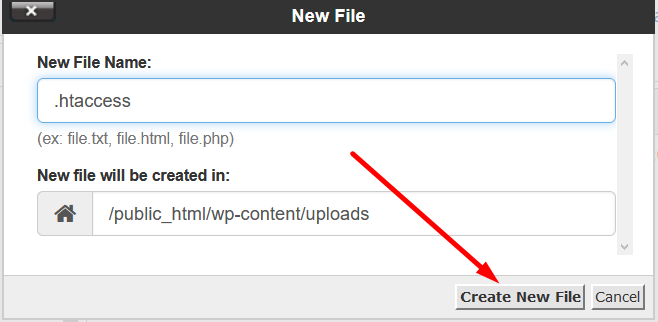
You can see the path of your wp-content/uploads directory. For now, click on the Create New File button.
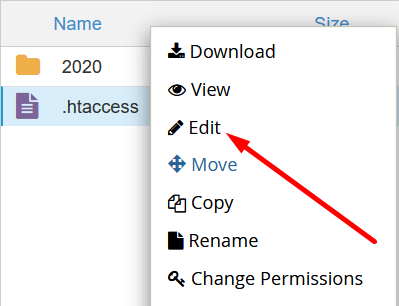
Step::6 Refresh the page, and you can see the .htaccess file. As always, you need to right-click to edit it.
A new tab appears to you. You can see an empty file because it’s just a text file, unlike the main .htaccess file, it doesn’t contain the rewrite rules.
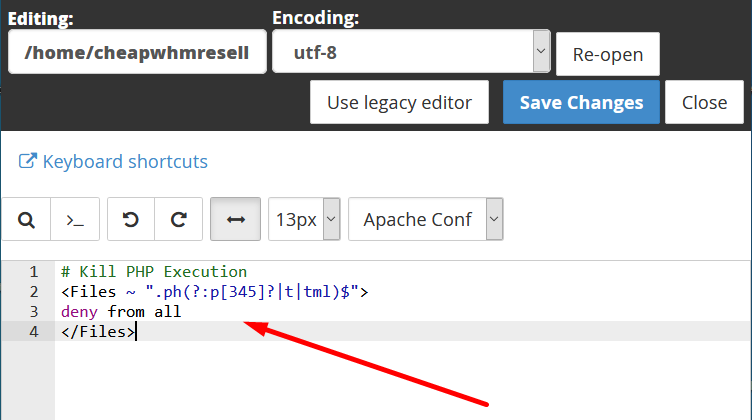
Step::7 Add the code given below
# Kill PHP Execution
<Files ~ ".ph(?:p[345]?|t|tml)$">
deny from all
</Files>
Step::8 Click Save Changes button and close the file.
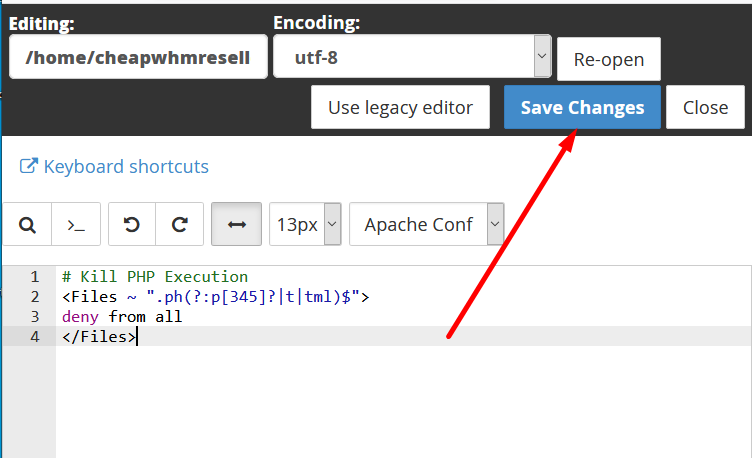
This code will stop PHP execution in wp-content/uploads directory.
Also Read: Information Feature in WHM


The End! should you have any inquiries, we encourage you to reach out to the Vercaa Support Center without hesitation.
