How To Restrict Bots From Accessing Your WordPress Site? [STEP BY STEP]☑️
In this tutorial, you will learn how to restrict bot from accessing your WordPress site by making some changes in the .htaccess file.
A bot is an application that is automated and runs script over the internet. They can perform tasks faster and can do repetitive tasks at a much higher rate than human. Bots can make your life easier and sometimes it can be a nuisance. In WordPress, bots can be used to breach the security of databases, login portal, hosts, etc. Therefore it is recommended to harden your WordPress site and restrict bots from accessing your site.
Follow the steps mentioned below to secure your site and restrict bots from accessing your WordPress site:
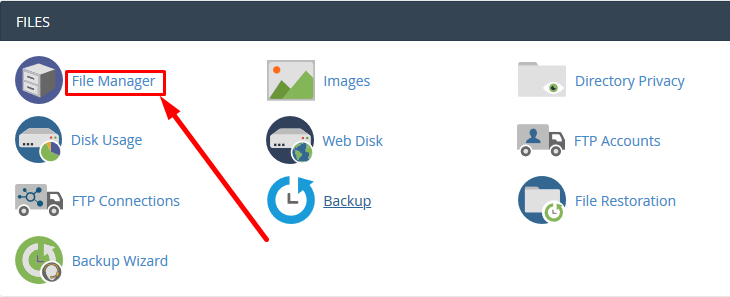
Step::1 Login to your cPanel and click File manager.
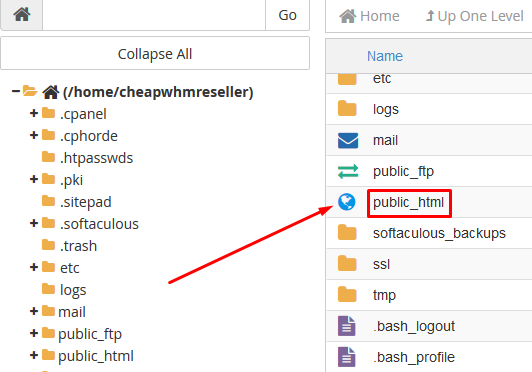
Step::2 Go inside public_html directory where you will find the .htaccess
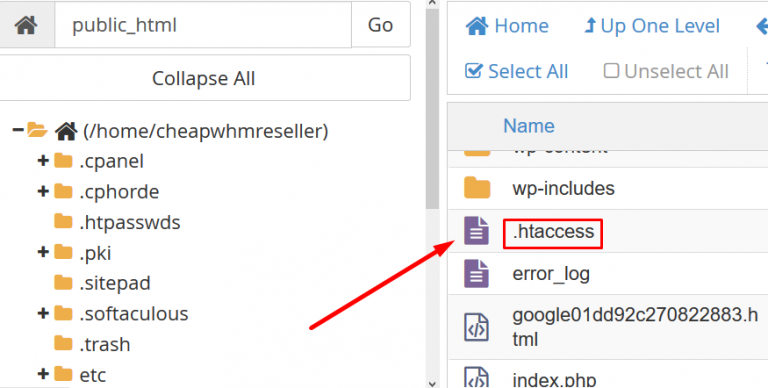
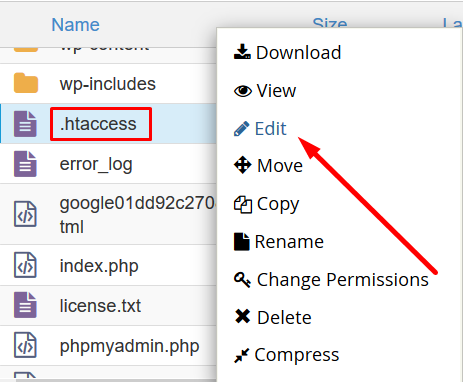
Step::3 Now, we need to restrict bots by adding some codes to the .htaccess file. Right click on .htaccess file and choose the Edit option.
Add the following lines of code to your .htaccess file to restrict bots from your site
#Block Bad User Agents
RewriteEngine On
RewriteCond %{HTTP_USER_AGENT} ^SpiderMan[OR]
RewriteCond %{HTTP_USER_AGENT} ^voyager[OR]
RewriteCond %{HTTP_USER_AGENT} ^WaveFire
RewriteRule .* - [F,L]
(In the above code, SpiderMan, voyager and Wavefire are the bots. These can be replaced by the bots you want to block.)
The last line of code requests the server to give a 403 error to the bots in the code.
Step::4 You can also restrict the access if you know the IP address of the bot.
You can list the IP addresses in the .htaccess file
#Restrict IP of bots
Deny from 123.123.45.184
Deny from 123.123.99.952
#Restrict IP range of bots
Deny from 123.123.123.0/24
You can add the IP address or the range of IP address of the bot that you want to block.
Step::5 Finally click on Save Changes tab and Close the Editor.
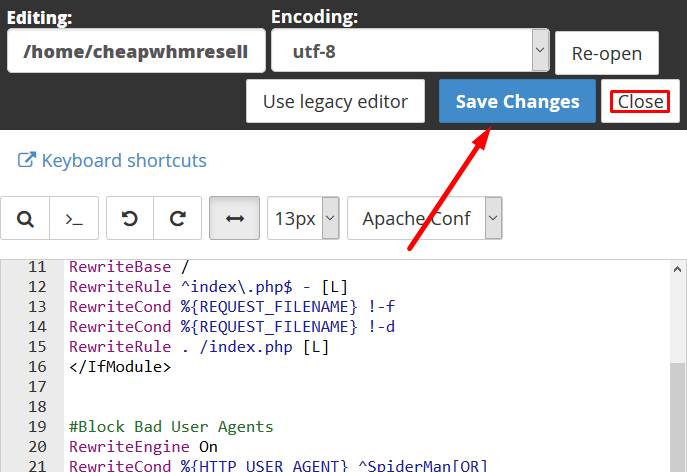
By following the steps mentioned, you can make your site safe from malicious bots to access your site.
The End! should you have any inquiries, we encourage you to reach out to the Vercaa Support Center without hesitation.
