How to Install WP plugin in WordPress with custom admin URL? [STEP BY STEP]☑️
Today in this tutorial you will learn about how to install WP plugins in those WordPress site which has customised wp admin. You might have observed that many WordPress users with custom admin path are unable to install any new Plugin in their website only because of misconfiguration of their WordPress admin path. Let me tell you that if you have customised your wp-admin path then whenever you try to install and activate any plugin it will automatically throw an error.
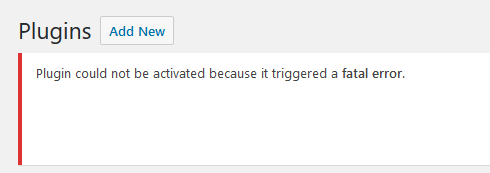
This error generally happens due to renamed wp-admin. In order to solve this error you have to go to the respective path which is shown in the error and then you will find that wp-admin is written which should be your custom admin. This wrong path is the actual reason behind the erro
How to fix “Plugin could not be activated because it triggered a fatal error”
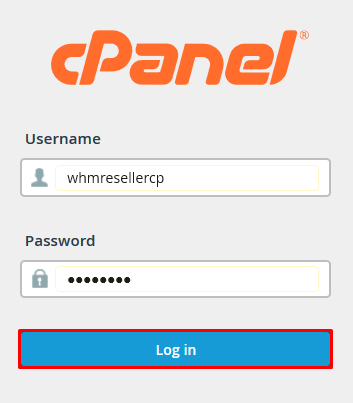
Step::1 Login to your cPanel admin dashboard
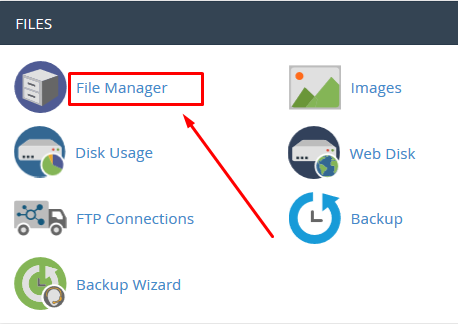
Step::2 Click on the File Manager icon under FILES section
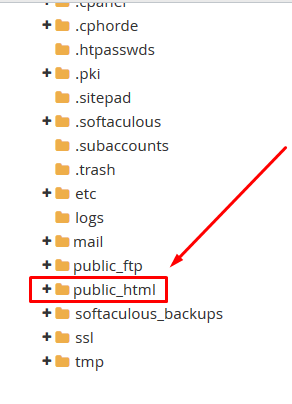
Step::3 Next go to public_html and find wp-content folder in your WordPress installation directory
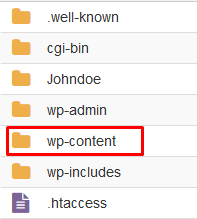
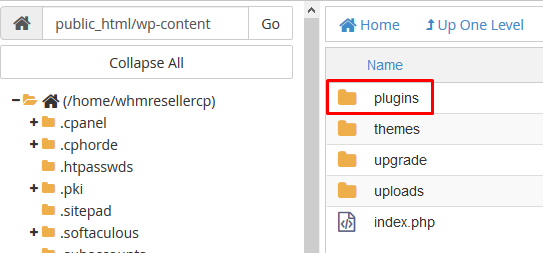
Step::4 Next go to Plugins directory and create a php file
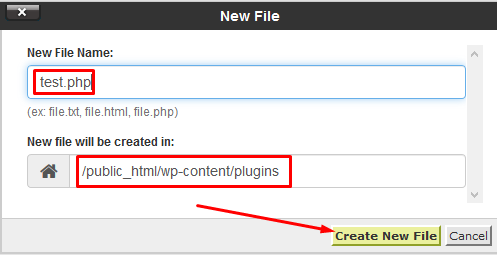
Step::5 You can give any name to this file like “test.php”
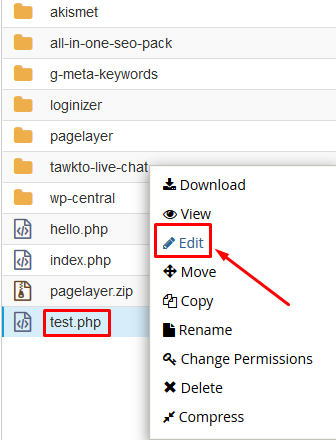
Step::6 Once you have created test.php file, right click and choose the Edit option
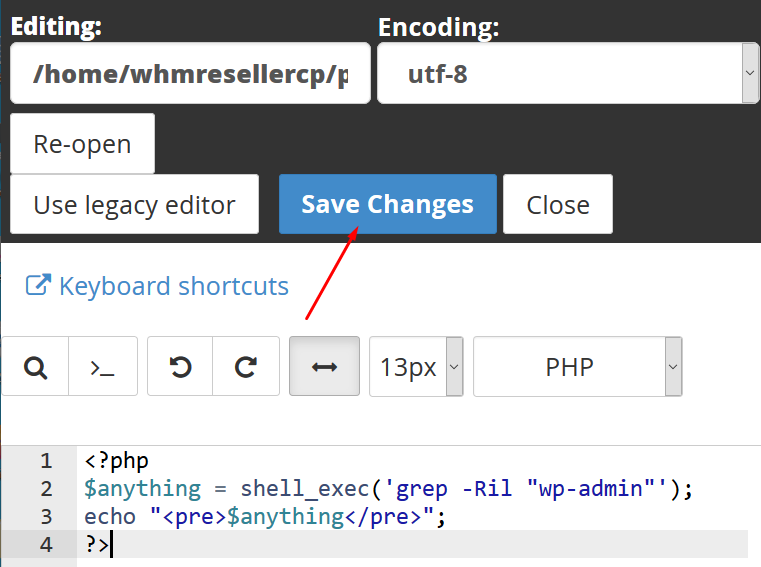
Step::7 Add the code given below
?php
$anything = shell_exec('grep -Ril "wp-admin"');
echo "<pre>$anything</pre>";
?>
Step::8 This code will find the “wp-admin” wherever written in the website’s code
Step::9 Save the file and close the editor
Step::10 Open the test.php from new window in your browser and get the output.
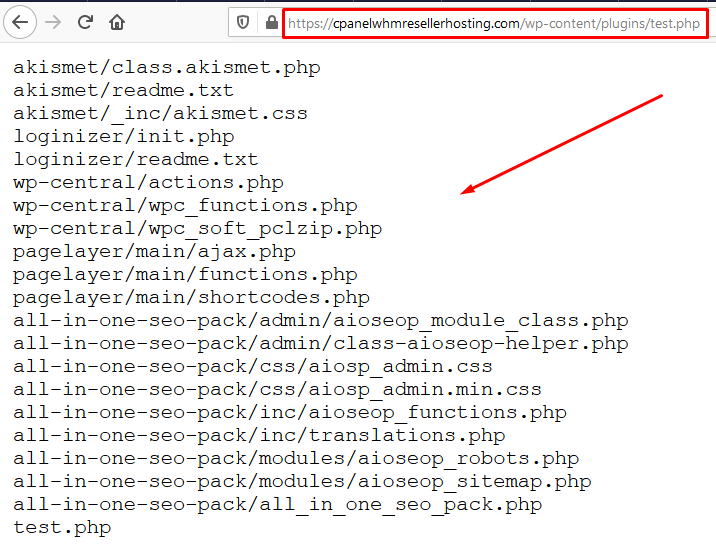
This will show you the list of path where wp-admin i.e old path(Default path) is written. You have to replace this old path(custom path) with the new path wherever required to fix the issue.
Thanks for Reading this article
The End! should you have any inquiries, we encourage you to reach out to the Vercaa Support Center without hesitation.
