With the passage of time, your WordPress website has multiple plugins which is not required. In that case you can simple delete those plugins so that they may not effect your website.
In this tutorial, we’re going to discuss in detailed procedure to delete a plugin in WordPress.
This can be done from one of the below mentioned ways.
#1. From WordPress dashboard
You can easily delete a WordPress plugin from the dashboard by following the below mentioned steps.
- Login to WordPress dashboard.
- Scroll down to Plugins and select Installed Plugins.
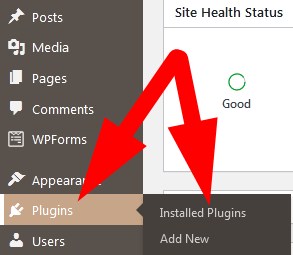
- On the next page, list of all installed plugins will appear.
- Select the one which you want to delete. But before deleting, Deactivate the plugin.
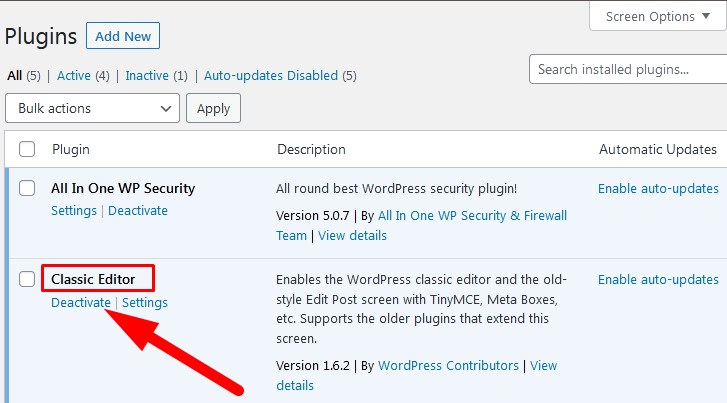
- After deactivation, you will see two options. Activate or Delete.
- Click over Delete and proceed.
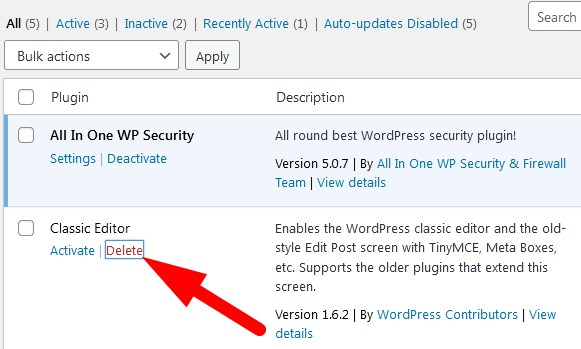
- You will be asked for confirmation. Click OK and done.
-
You have successfully delete WordPress Plugin from dashboard.
#2. From cPanel
User can delete a WordPress plugin from cPanel as well. Follow the below mentioned procedure for same.
- Login to cPanel account associated with your WordPress website.
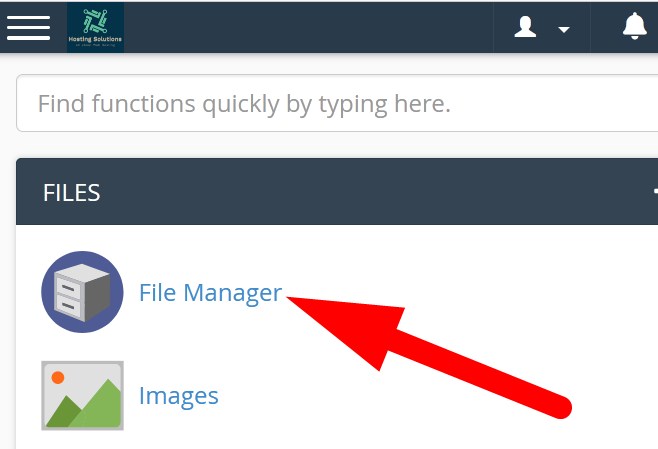
- Go to File Manager section.
- On the next page, go inside WordPress installation directory and then wp-contents and then plugins.
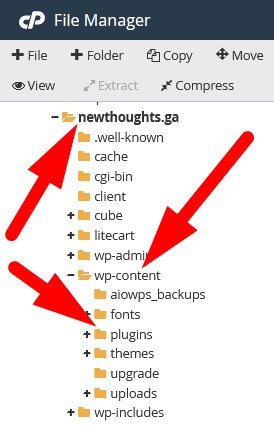
- Directories of all the plugins will appear on the right-side.
Right-click over the plugin directory which you want to delete and then Delete.
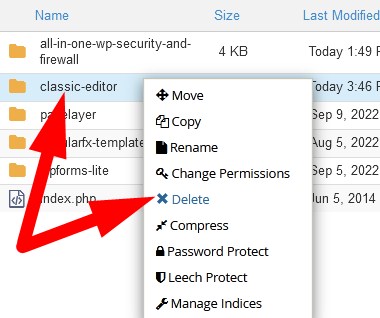
- A window will appear that asks for the confirmation. Confirm and done.
-
You have successfully deleted the WordPress Plugin from File Manager in cPanel.
#3. From FTP Client
If you did not have the cPanel credentials of your WordPress website then also you can easily delete the WordPress plugin. Follow the below given steps to do the same.
- Login to FTP Client, FileZilla with WordPress website login Credentials. You can refer to the article to check the steps for login to FileZilla.
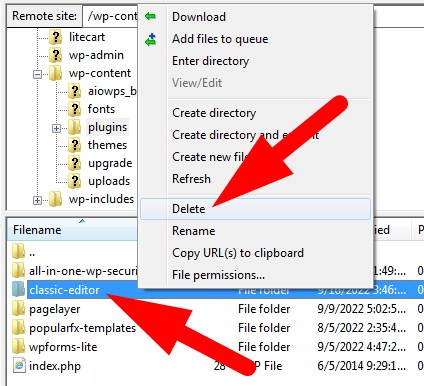
- List of all your WordPress files and directories will appear. In the remote site, go to wp-content directory and then plugins directory.
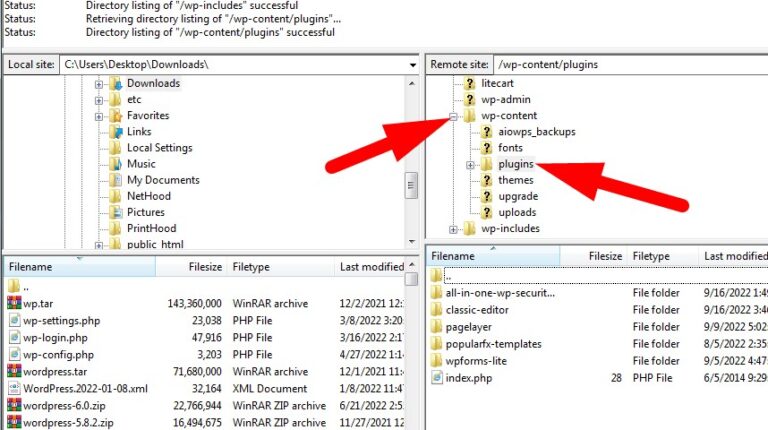
- List of all plugins will appear on the remote site in below section. Right click over the plugin which you want to delete.
- Then select Delete from the options appear. You can also check the tutorial to manage files and directories via File Zilla.
-
- A pop-up will appear that asks you to confirm. Click over Yes and done.
You have successfully deleted the WordPress plugin from FTP Client.
The End! should you have any inquiries, we encourage you to reach out to the Vercaa Support Center without hesitation.
