How to transfer your WordPress content from one blog to another? [STEP BY STEP]☑️
Here in this tutorial, I’m going to show you how to transfer content from one blog to another.
Follow the steps to transfer your WordPress content from one blog to another:
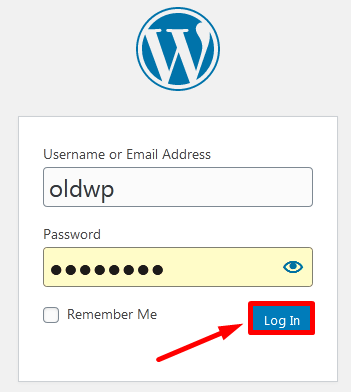
Step::1 First, you need to log into your old site’s WordPress dashboard.
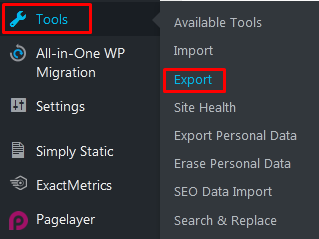
Step::2 From there, go to the Tools section and click, “Export.”
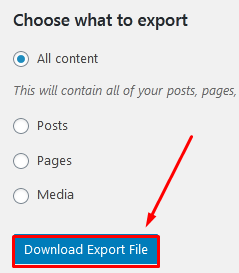
Step::3 In the Export screen, you’ll have several options available like All content, Posts, Pages & Media
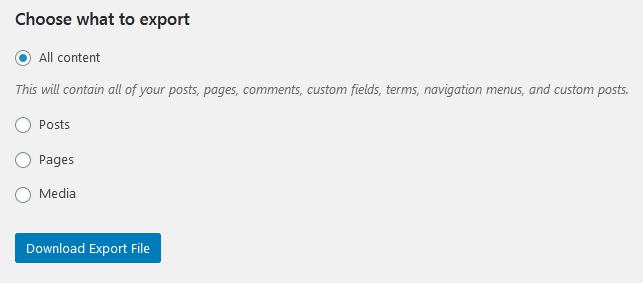
Here, I am showing you how to move All content.
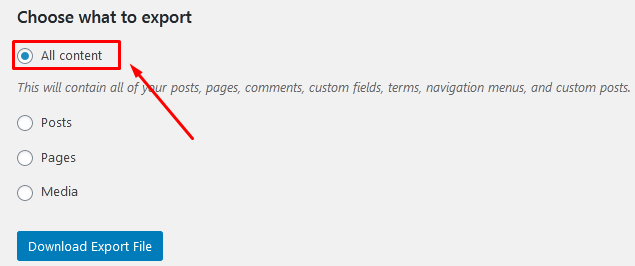
Step::4 Click the “Download Export File” button on the bottom.
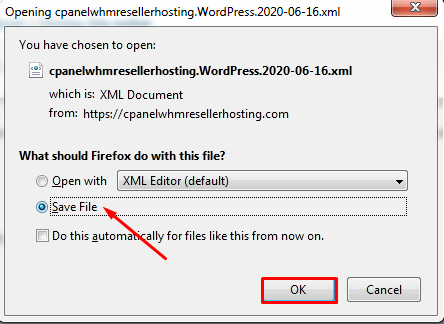
Step::5 Now click on the Save File option to save the XML file to your desktop/Laptop Once the file has been saved, you can continue on to the next step.
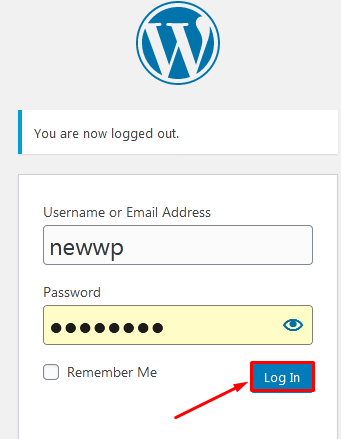
Step::6 Now log into the new WordPress website’s dashboard.
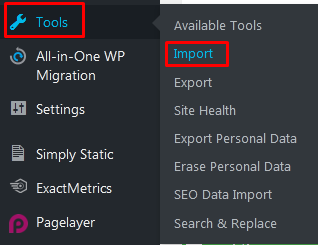
Step::7 Go to the Tools section and click, “Import.”
Step::8 In the Import screen, you’ll see a variety of options for blog types. Since we are moving content from one WordPress site to another, we want to use “WordPress.”
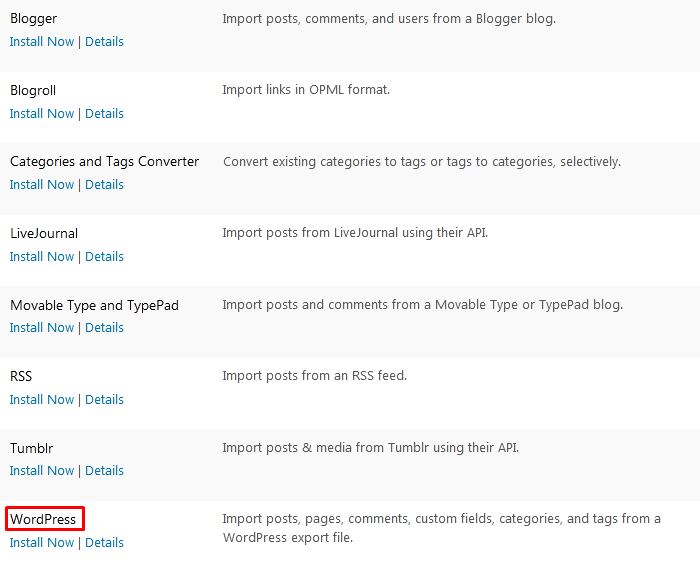
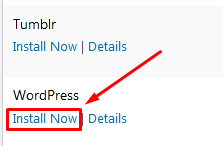
Step::9 Directly under “WordPress,” you’ll see a link “Install Now,” click on it to install the WordPress module
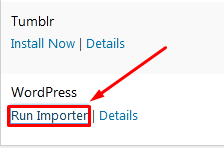
Step::10 Now Click on Run Importer.
Step::11 Next click on the Browse button
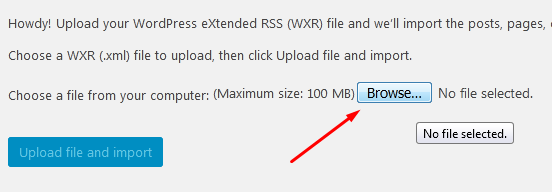
Step::12 Upload the xml file which you downloaded earlier
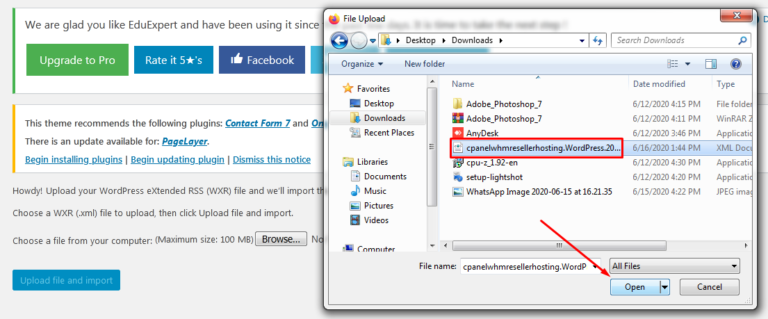
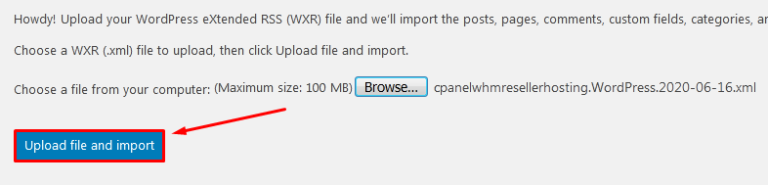
Step::13 Click on Upload File and Import
Step::14 In the next screen, you’ll be able to assign authors to the old content. You can import the old author directly, create a new user login name or assign the posts to an existing user on the new site.
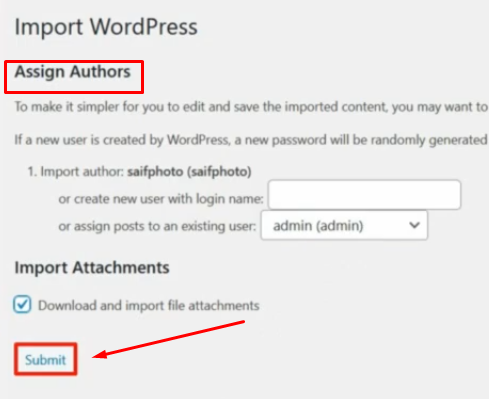
Step::15 Finally click on the Submit button.
In this way, WordPress will then transfer all content from the old site to the new.
Thanks for reading this article
The End! should you have any inquiries, we encourage you to reach out to the Vercaa Support Center without hesitation.
