This interface of cPanel helps you to enable gzip compression. Apache allows you to compress the data before sending it to the browser and then web browser extracts the data and displays the webpage. All modern browsers support gzip compression. This gzip compression needs Apache mod_deflate to function currently, which is available in most cPanel installed Linux servers. This compression is very useful, because it helps in compressing data hence our bandwidth is saved, plus it makes our website to load much faster.
You can compress specific types of MIME (Multipurpose Internet Mail Extensions) or you can compress all the files using this interface.
To enable gzip compression, follow these steps −
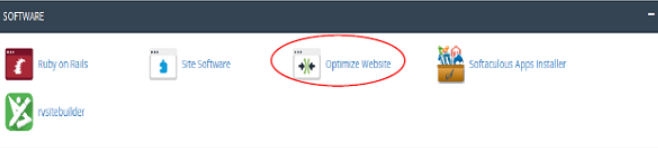
Step 1 − Open cPanel Optimize Website interface by clicking on Optimize Website link in the Software section of cPanel.
Step 2 − In Optimize Website, you will see Compress Content.
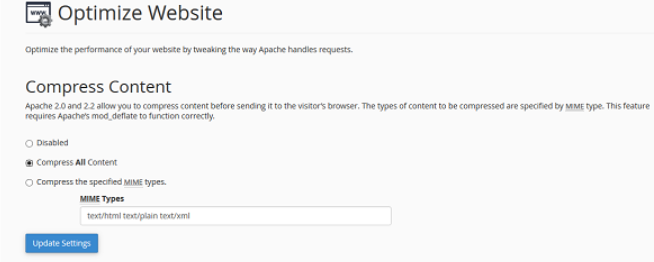
You can choose from the following −
-
Choose Disable to disable gzip compression.
-
Choose Compress All Content to enable gzip compression for all content.
-
Choose Specified MIME types and provide MIME types in text box. MIME type are similar to file types. It has both file type and file format information separated with a slash. E.g. text/javascript, text/css, image/jpg, image/png etc.
Step 3 − Click Update Settings to update the settings.
The End! should you have any inquiries, we encourage you to reach out to the Vercaa Support Center without hesitation.
