How to Hide Admin Menu Items for Specific Users in WordPress? [STEP BY STEP]☑️
Here in this documentation we will show you how to hide Admin Menu Items for Specific Users in WordPress. If you have multiple users on your website then sometimes you’ll need certain people to have specific permissions but not have access to some of the tools in the admin toolbar. That’s why we have bought this tutorial to show you how you can set WordPress to hide menu items for specific users.
Follow the steps to Hide Admin Menu Items for Specific Users in WordPress:
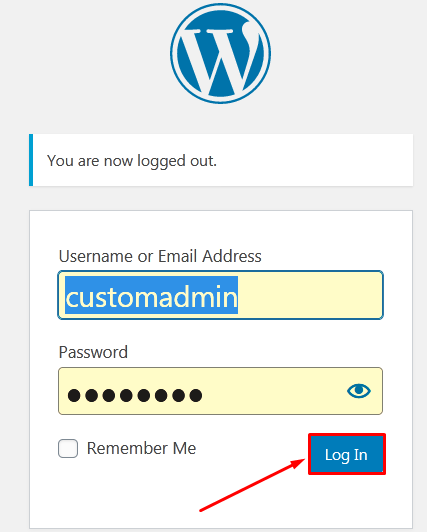
Step::1 Login to your WordPress admin dashboard.
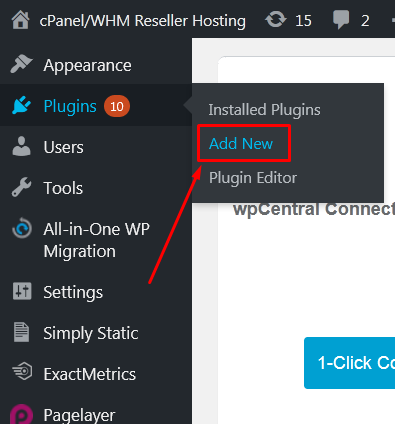
Step::2 Go to Plugins section and click on “Add New”
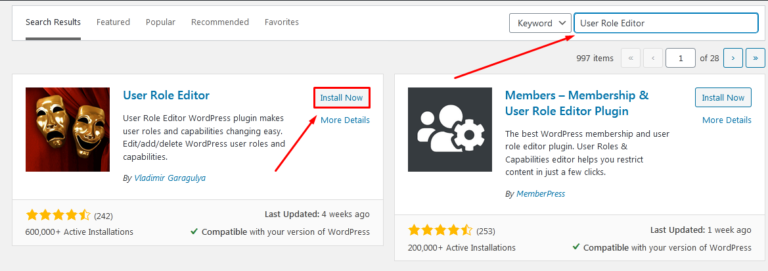
Step::3 Search for “User Role Editor” plugin in the search box and click on Install Now button
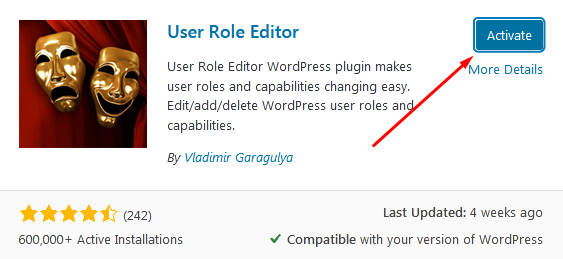
Step::4 Click on the Activate button
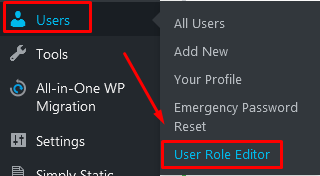
Step::5 Next go to the Users section in the left side admin panel and click, “User Role Editor.”
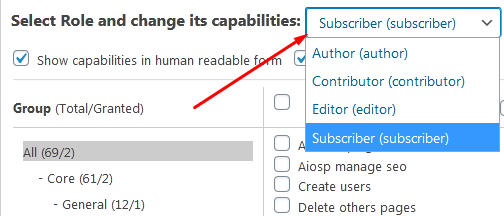
Step::6 Use the drop-down box to select the role you want to edit.
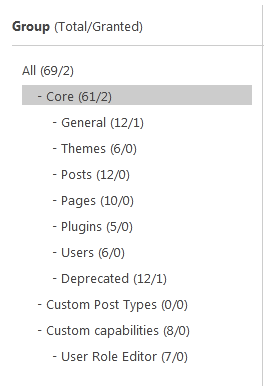
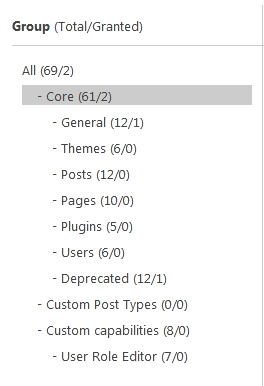
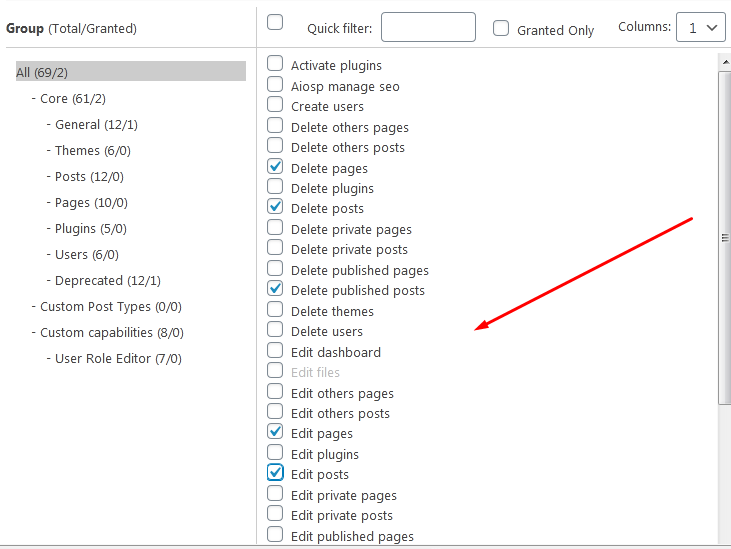
Step::7 In the group column, you can select which permissions you want to edit. You can sort by core, custom posts types and other functions of your site.
Step::8 In the second column, choose which abilities the user will have by clicking the checkbox.
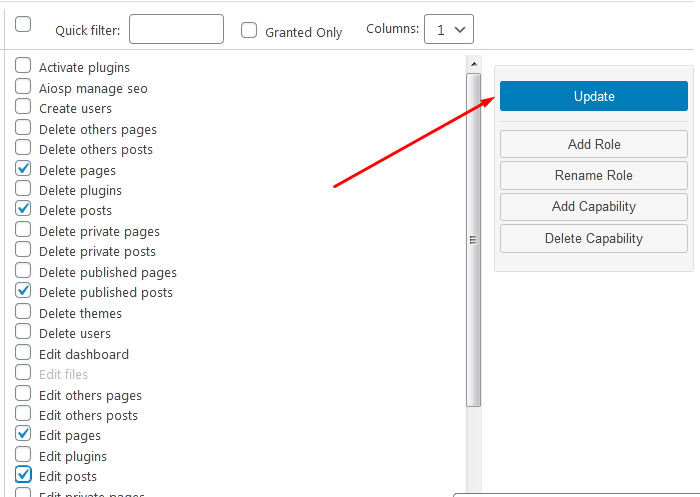
Step::9 Once you’ve selected the abilities, click the “Update” button. A confirmation window will pop up.
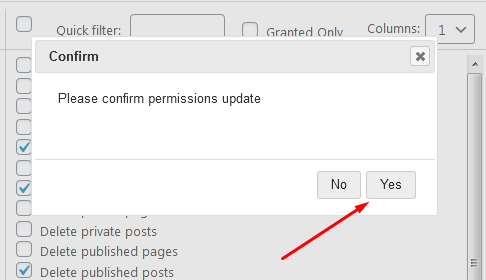
Step::10 Click the “Yes” button if you’re sure you want to edit the user role. Now, the user will only have the permissions you’ve assigned.
Thanks for Reading this article
The End! should you have any inquiries, we encourage you to reach out to the Vercaa Support Center without hesitation.
